How to Add a New Product in OnePhenix
1. Navigate to https://web.onephenix.com/#/product
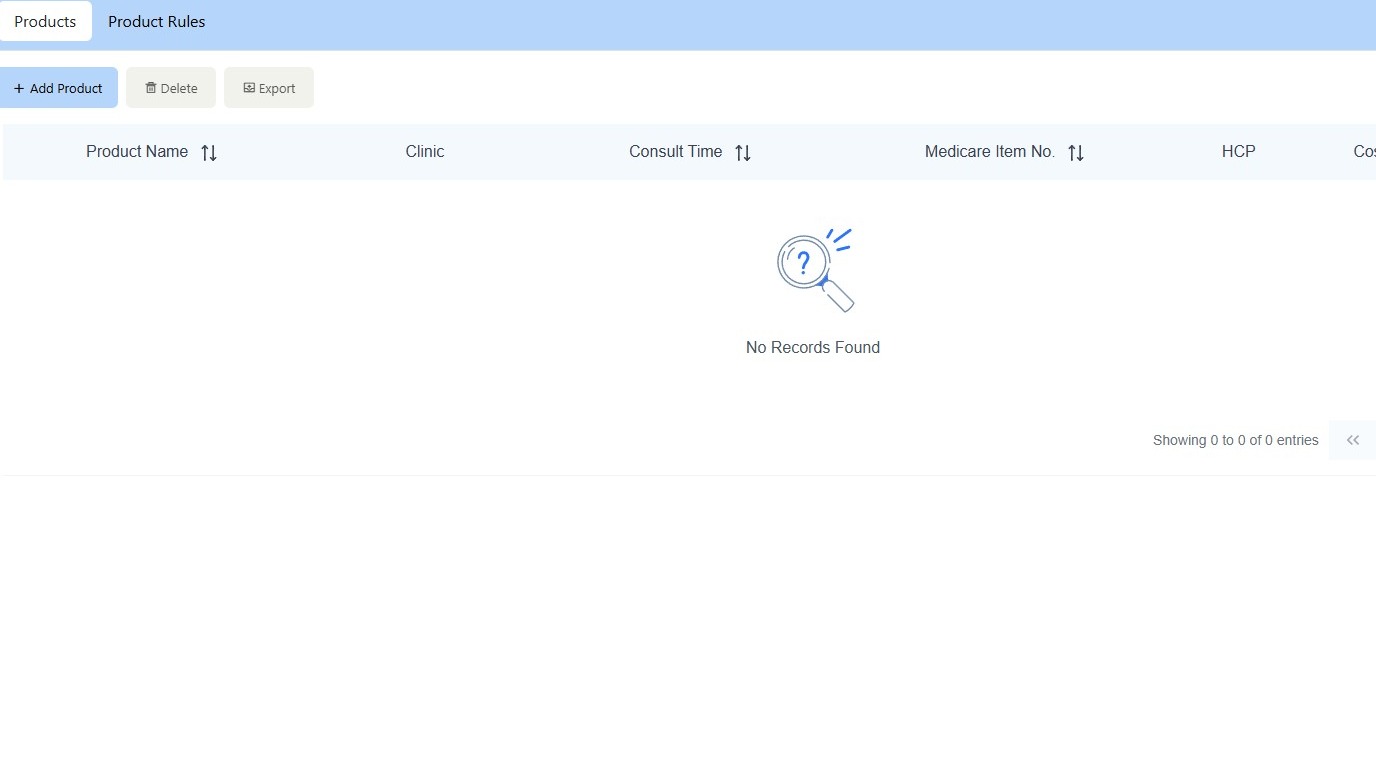
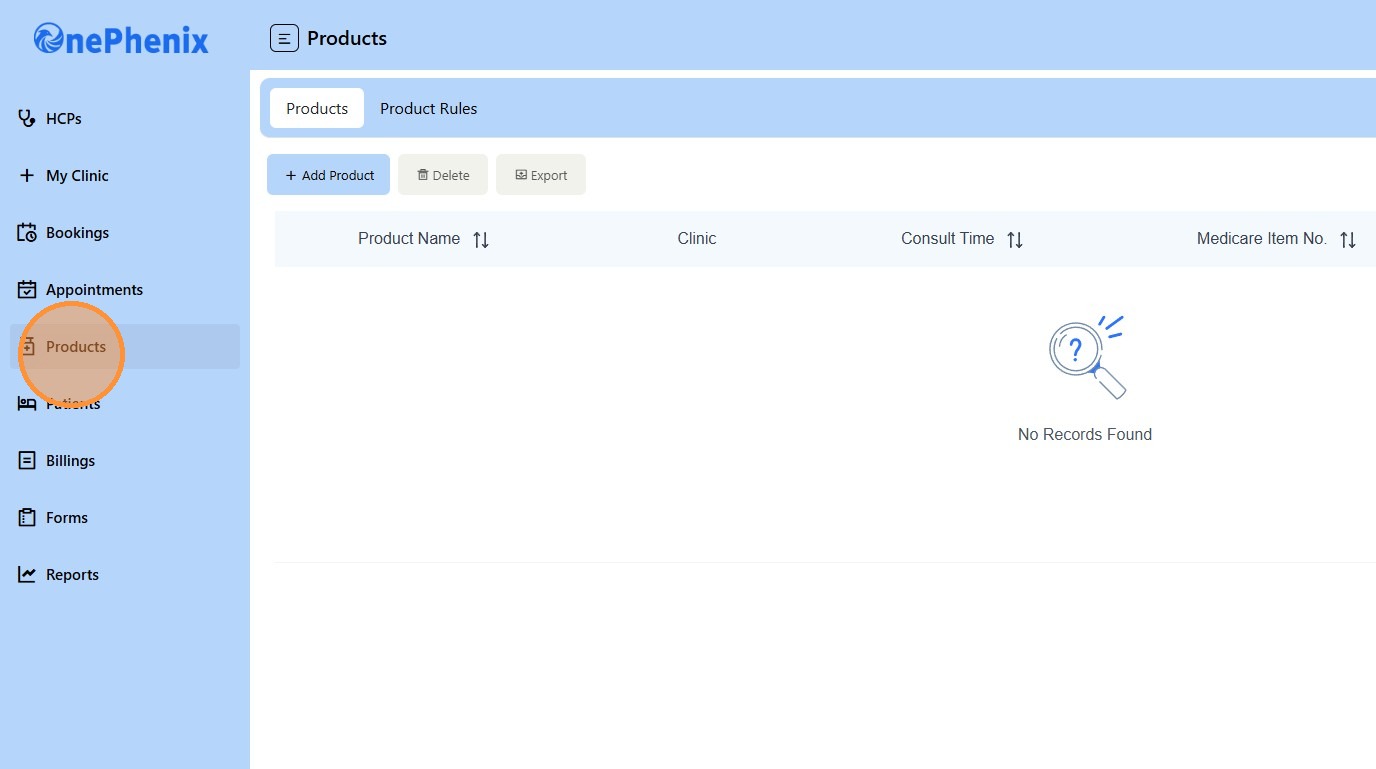
2. Click “Products”
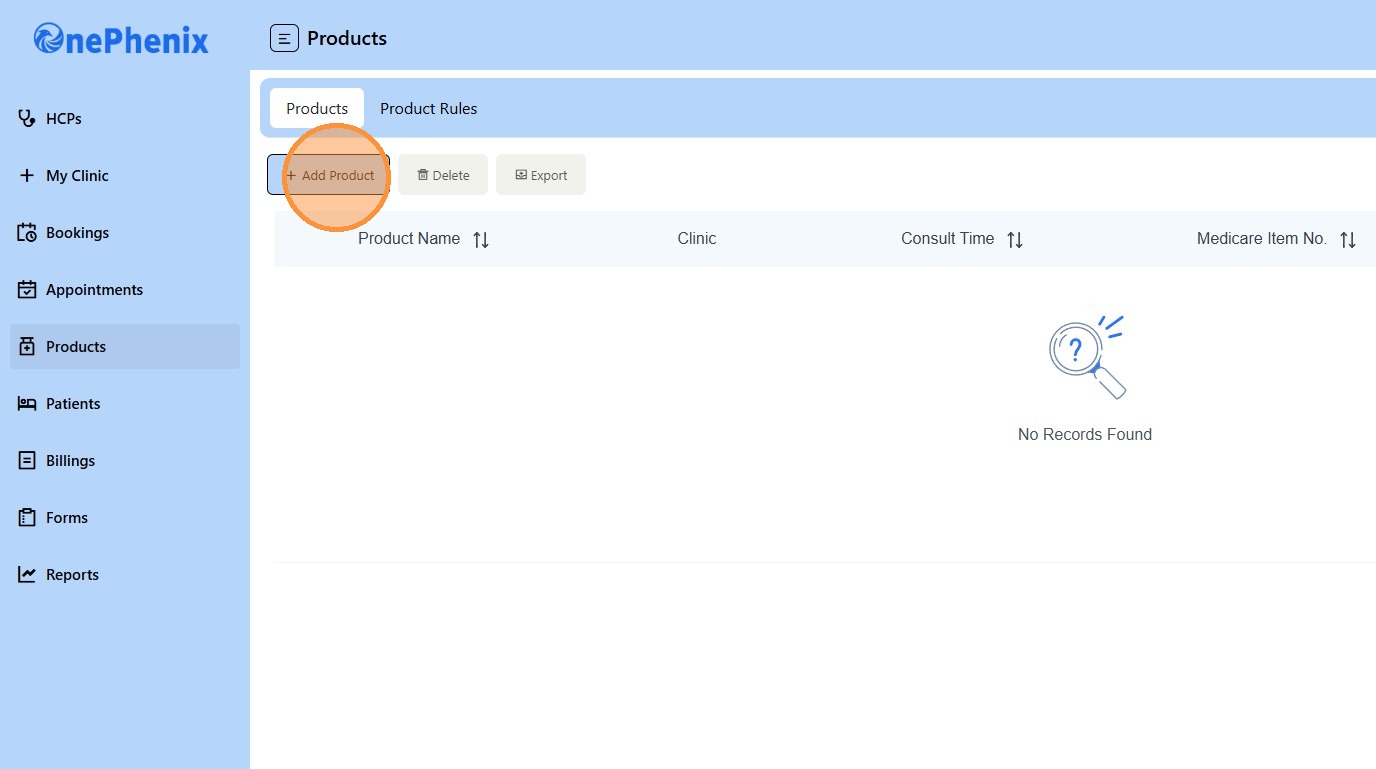
3. Click “Add Product”
4. Enter the “Product Name”
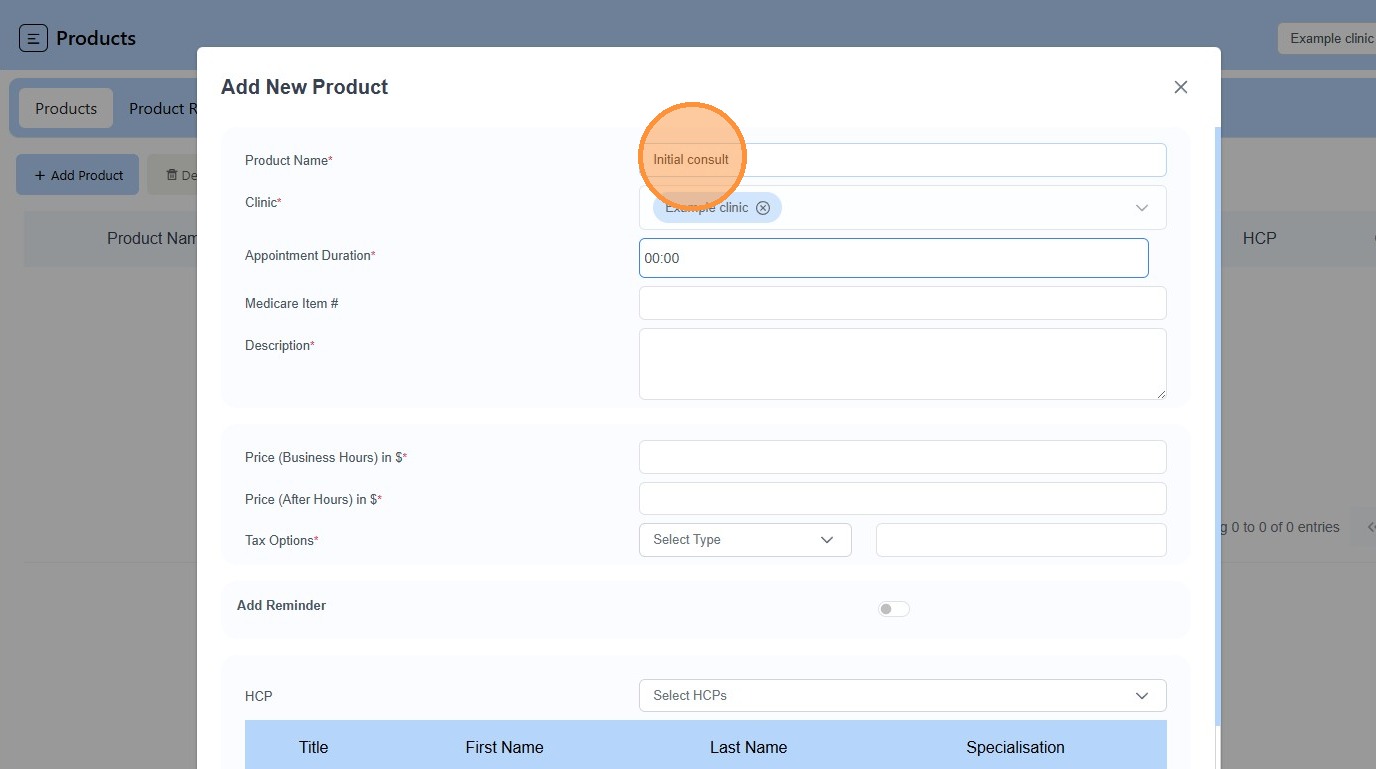
5. Enter length of appointment HH:MM
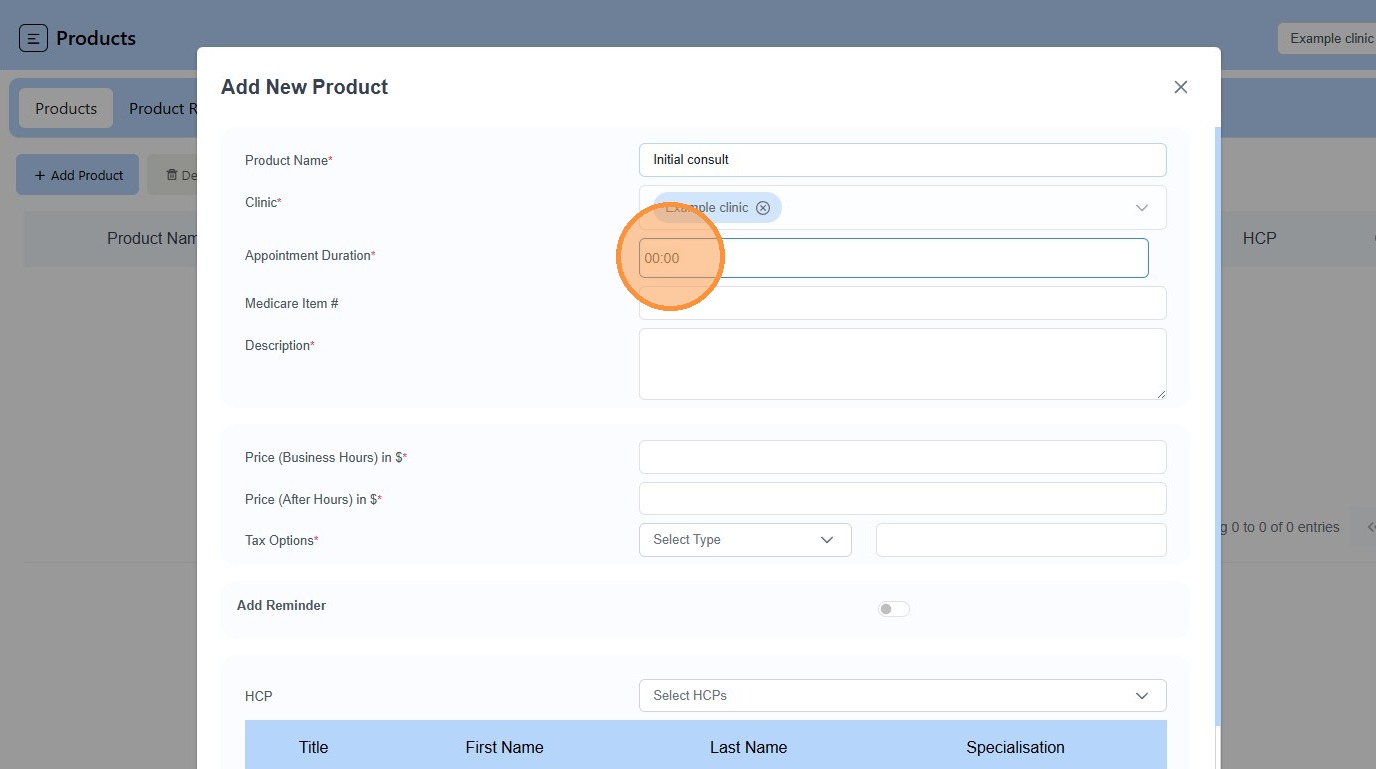
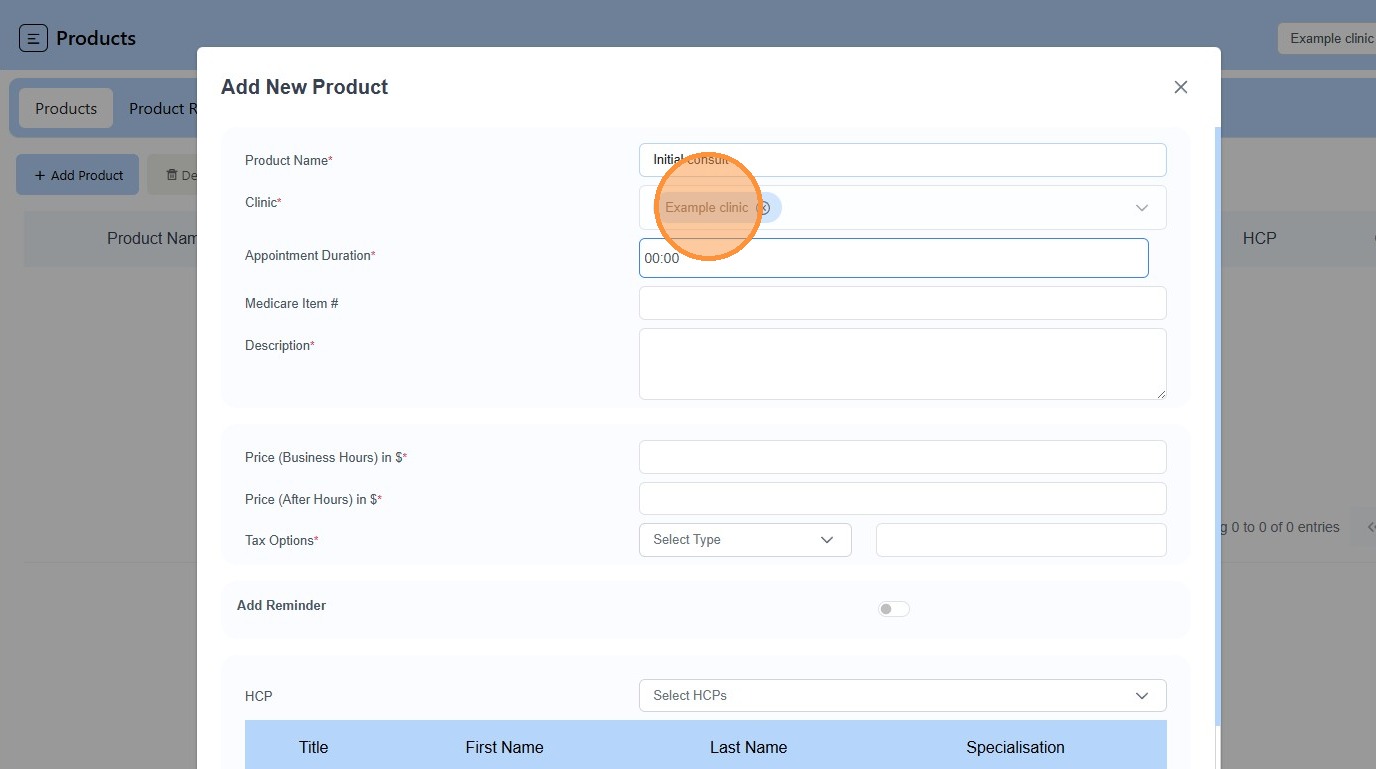
6. Choose under what “Clinic”
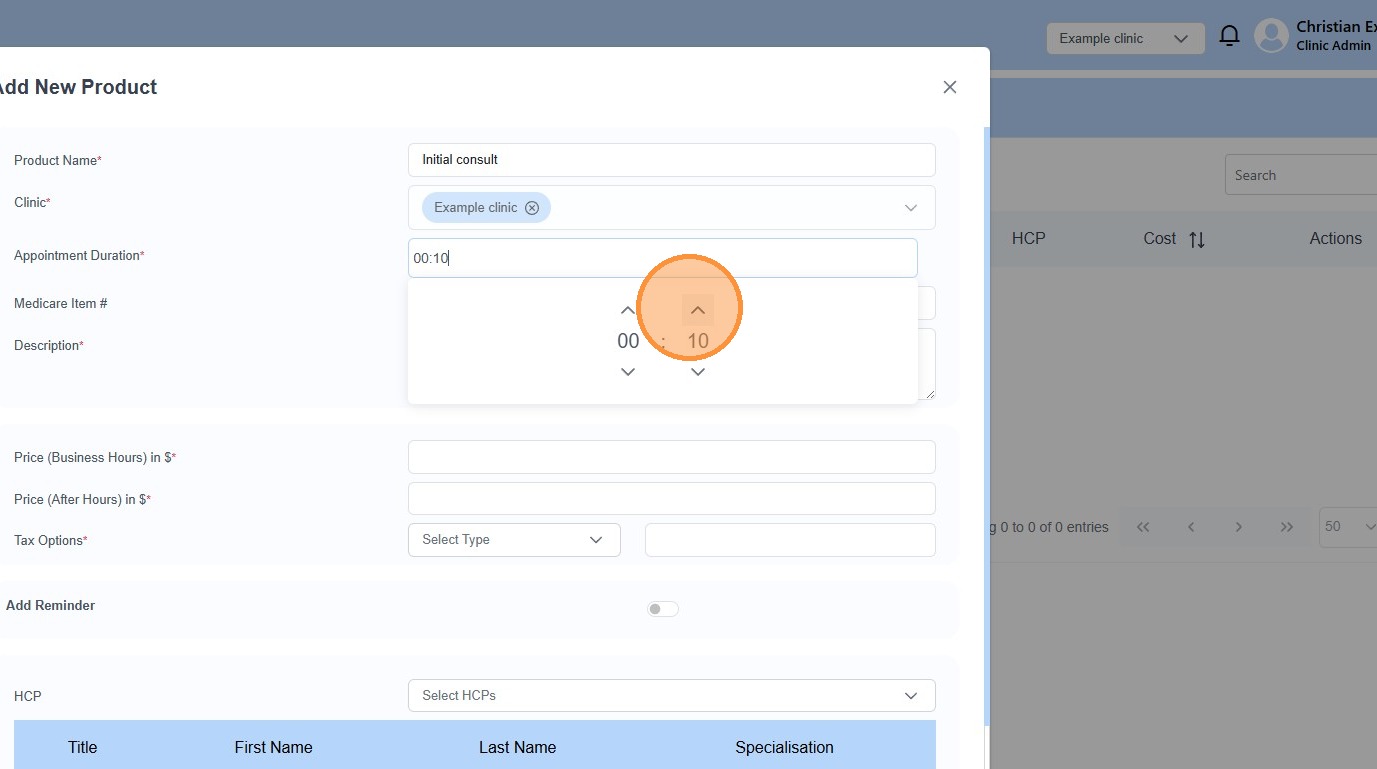
7. Click the arrow up and down icon to adjust duration
8. Enter “Medicare Item #” if relevant
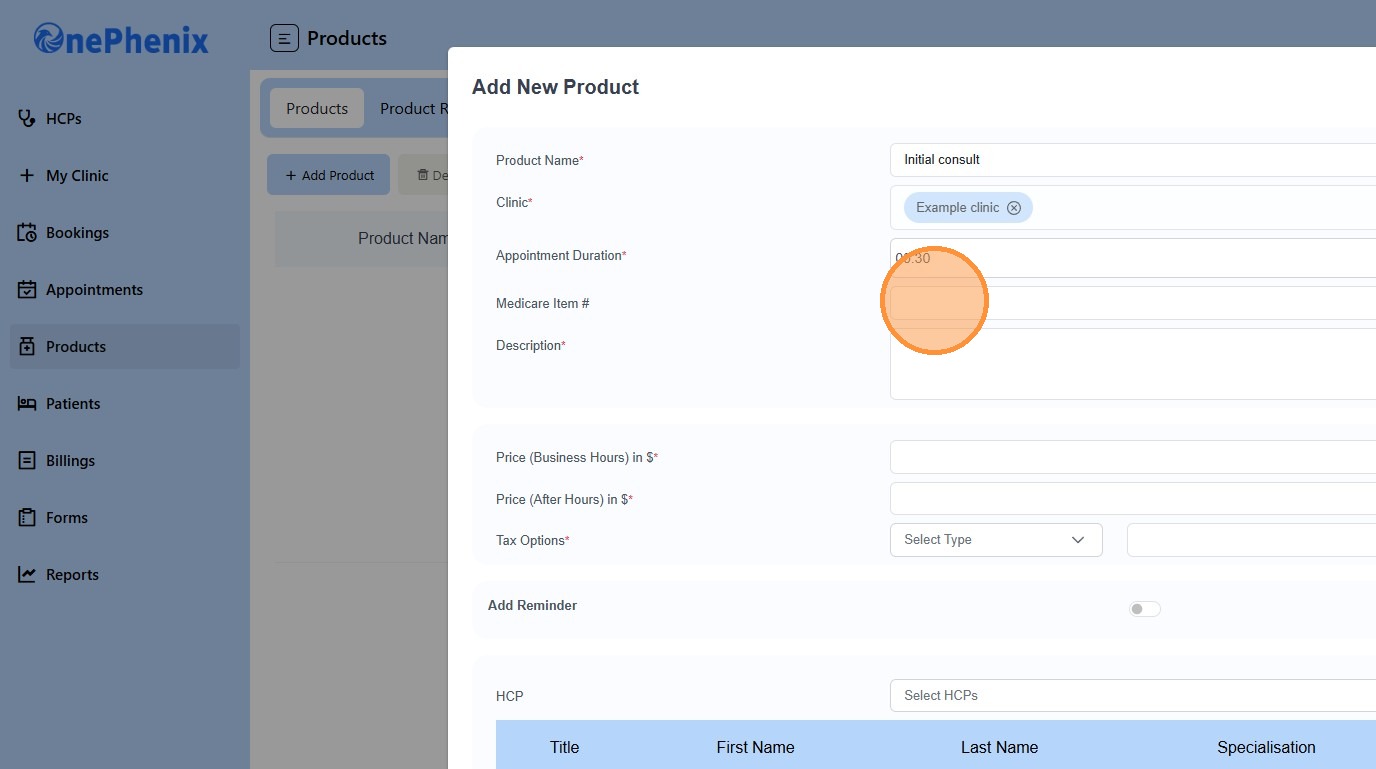
9. Enter a “Description”
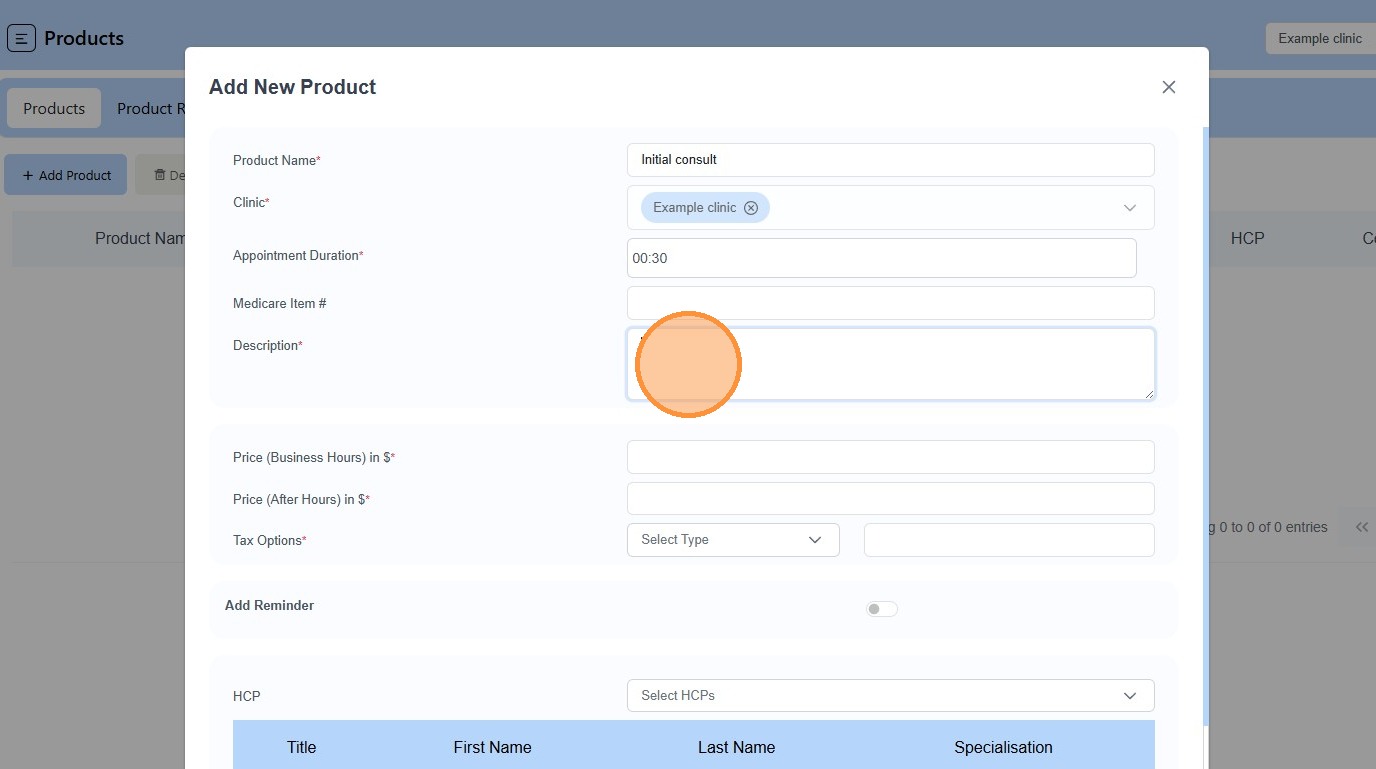
10. Enter in “Price”
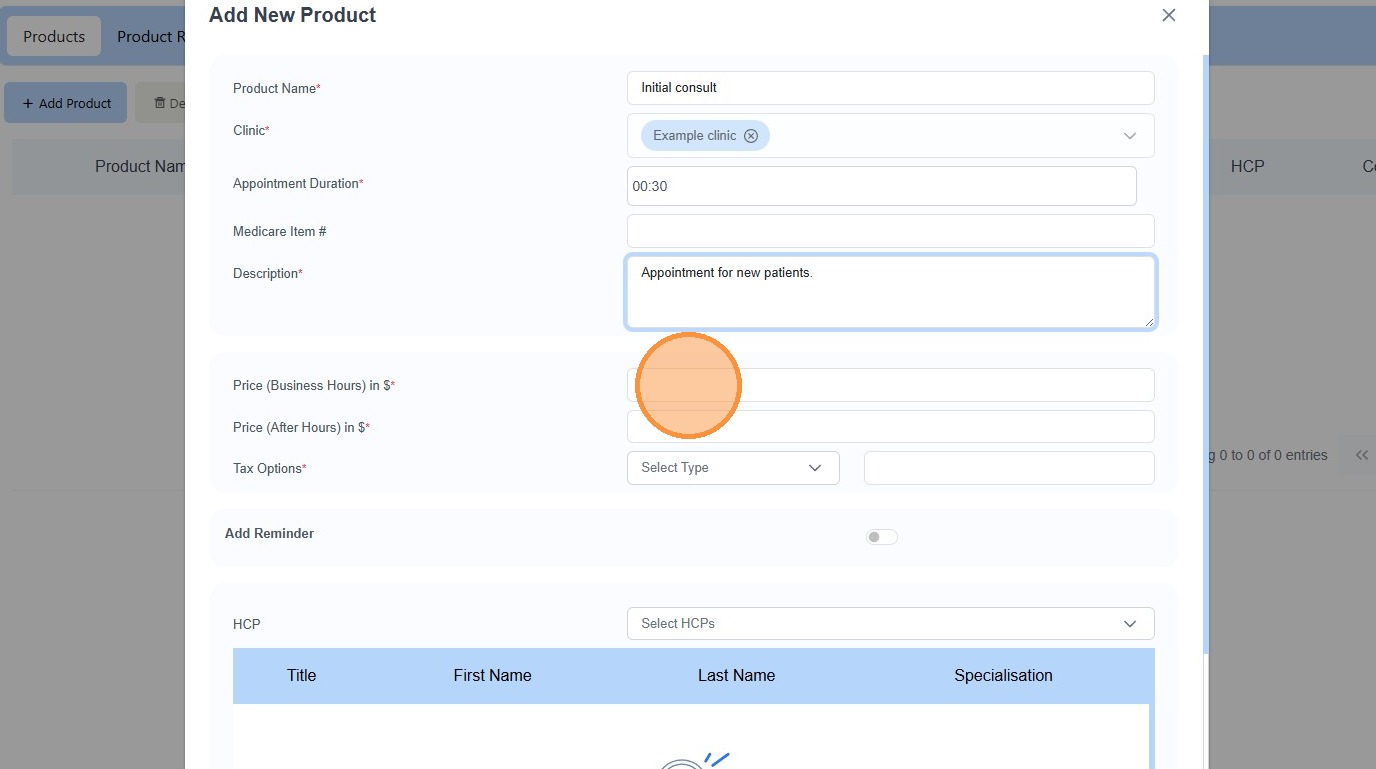
11. Select required “Tax Option”
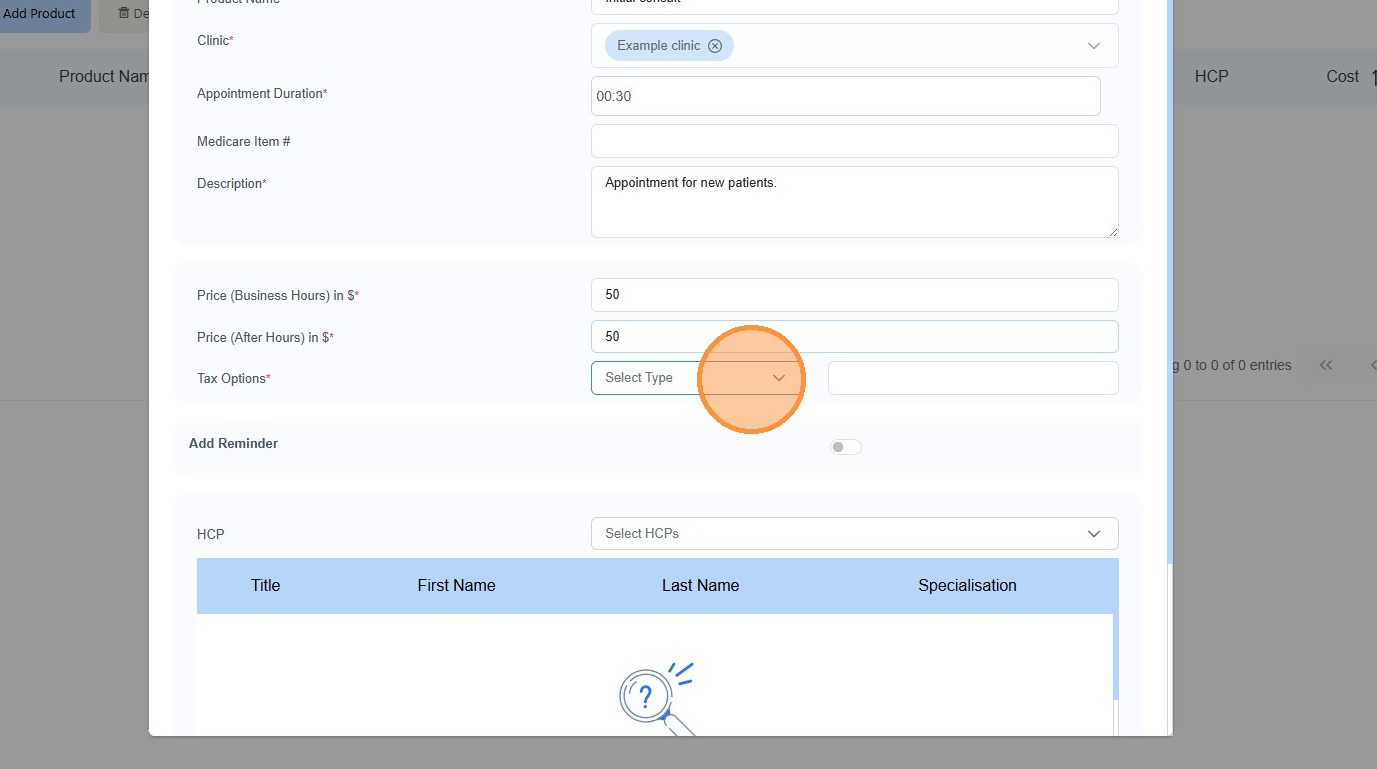
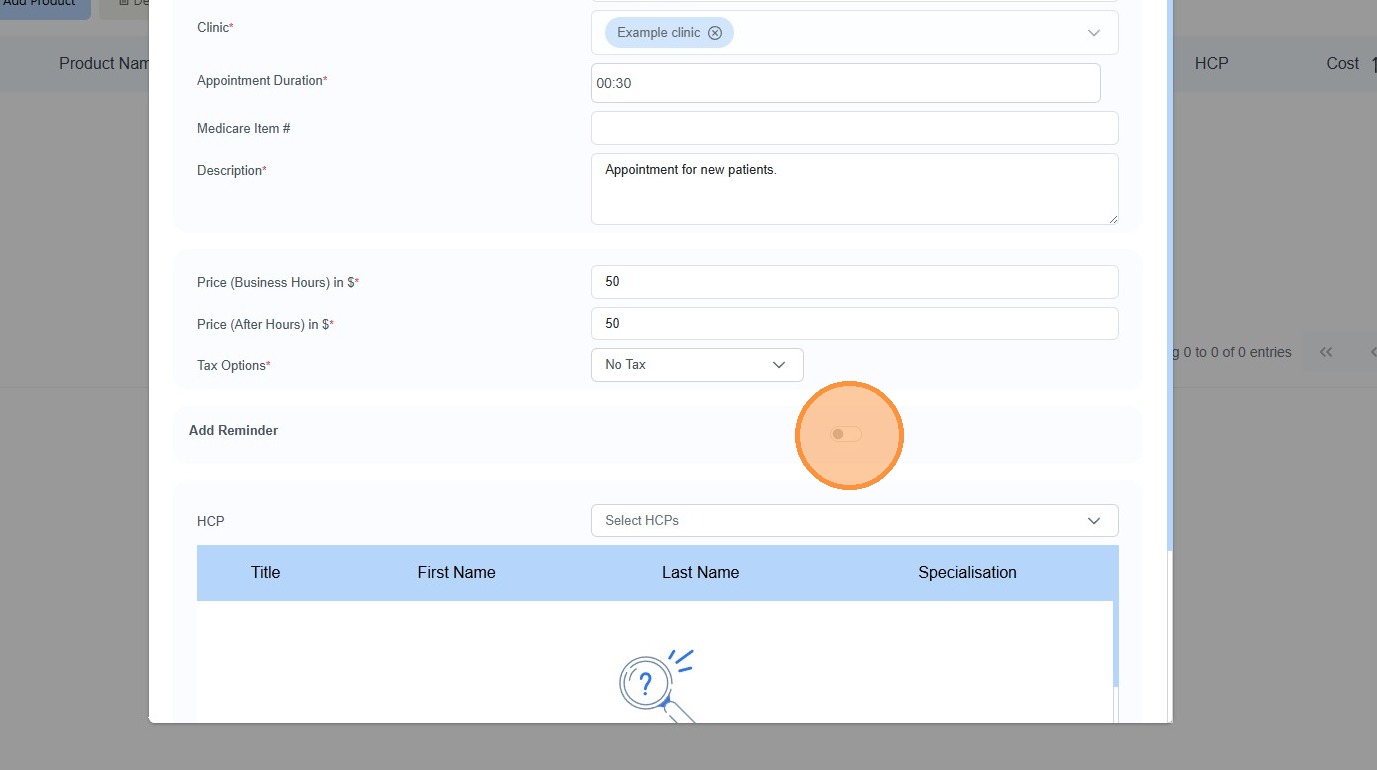
12. Click “Add Reminder”
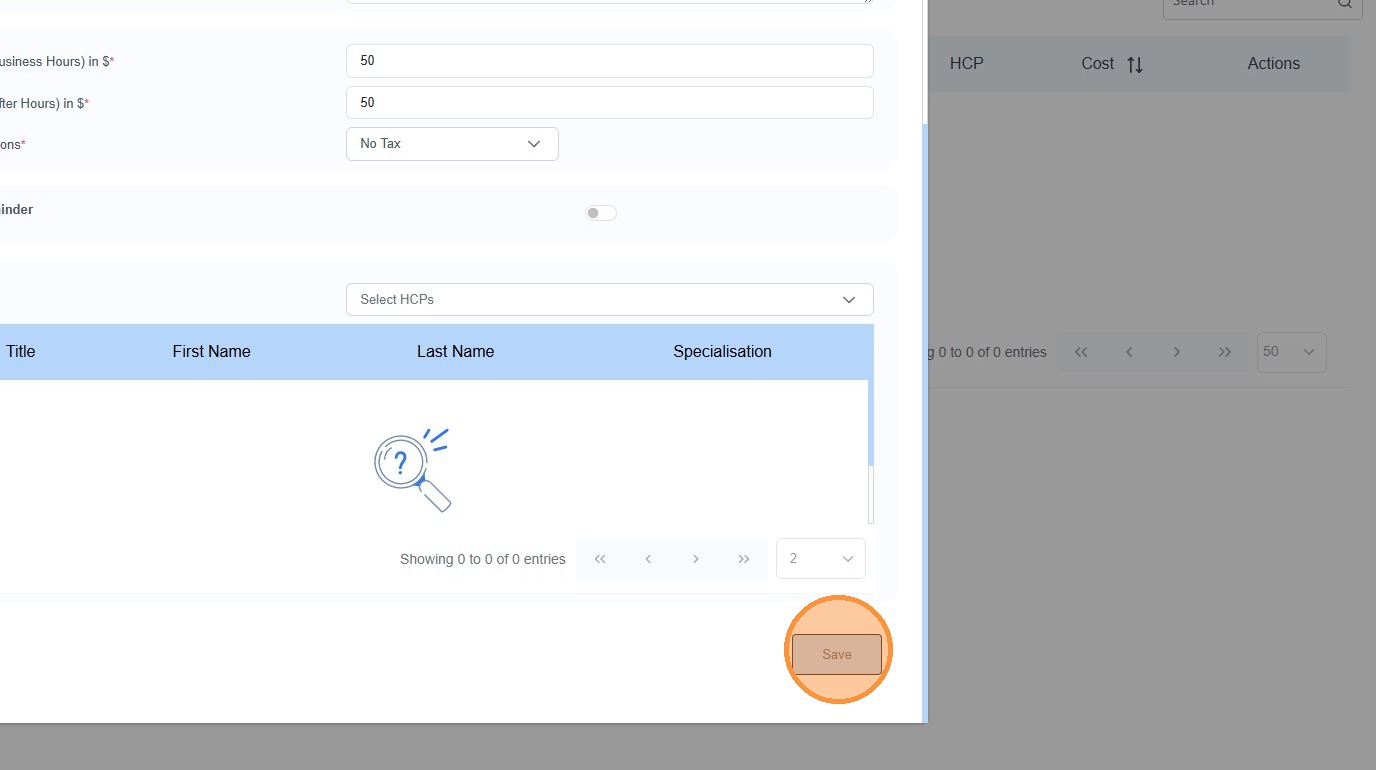
13. Click “Save”