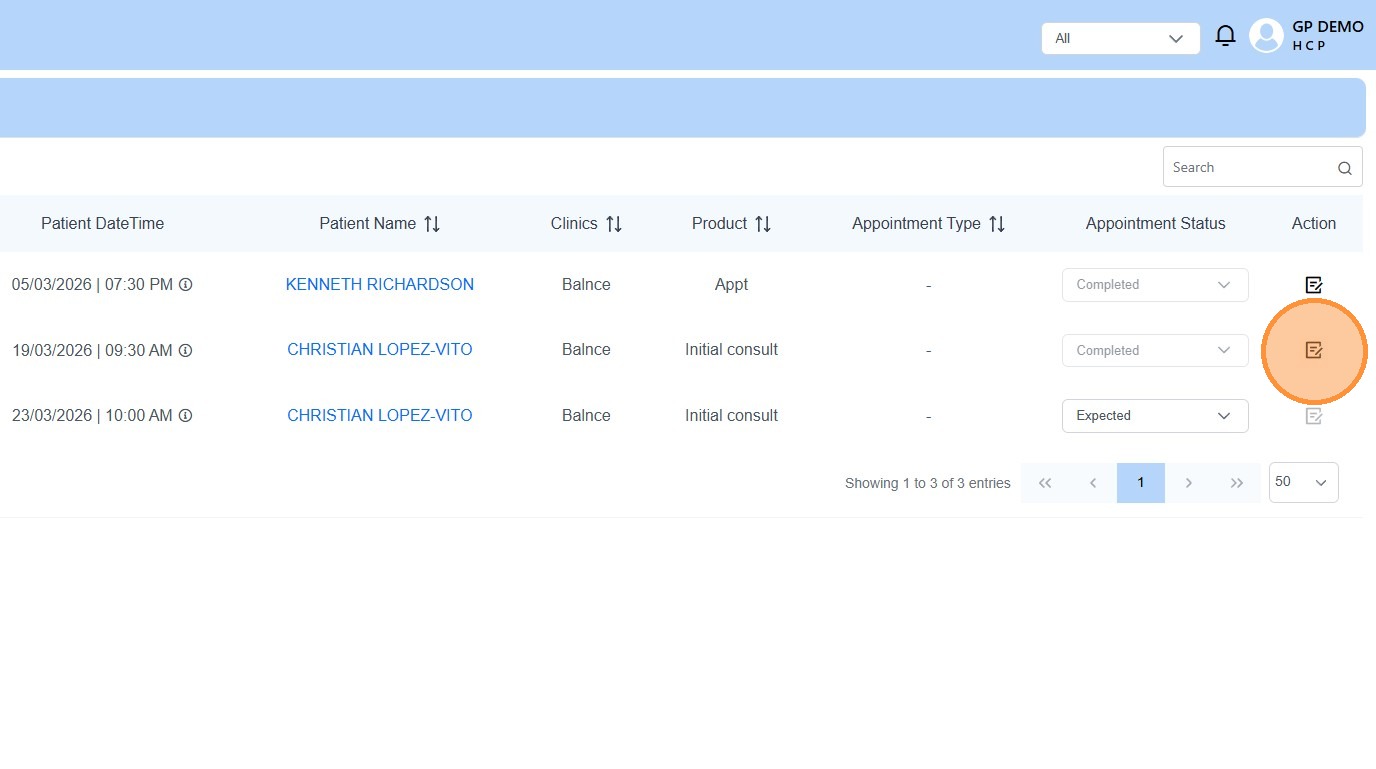
How to access a previous patients file
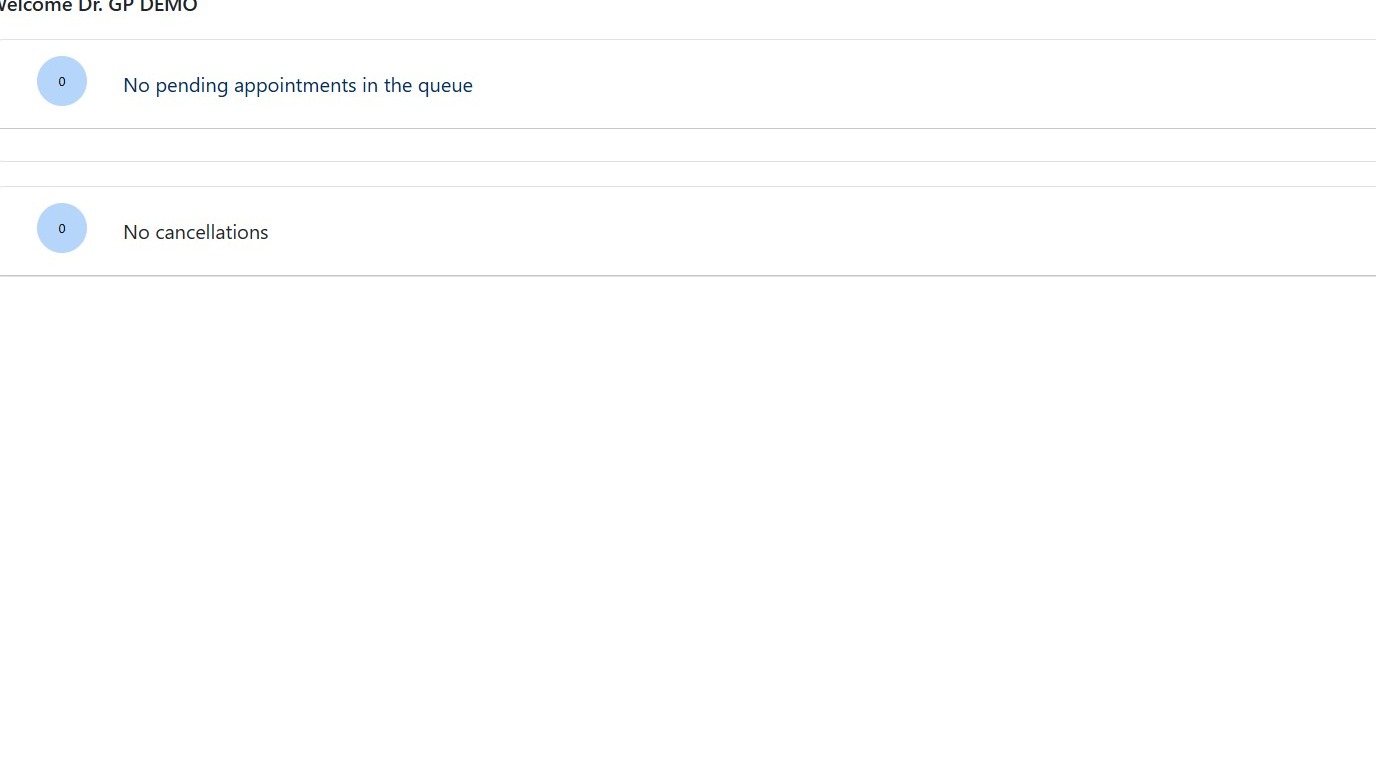
1. Navigate to https://web.onephenix.com/#/dashboard
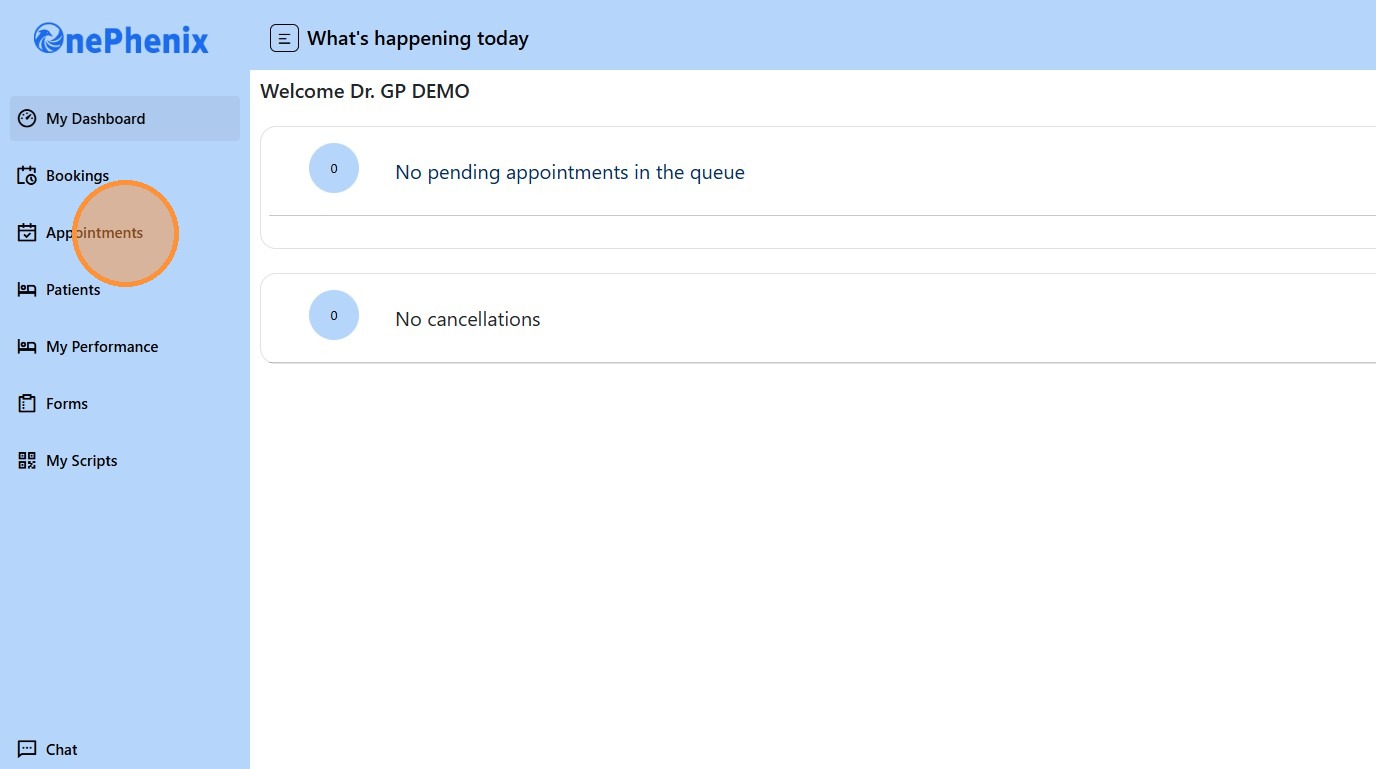
2. Click “Appointments”
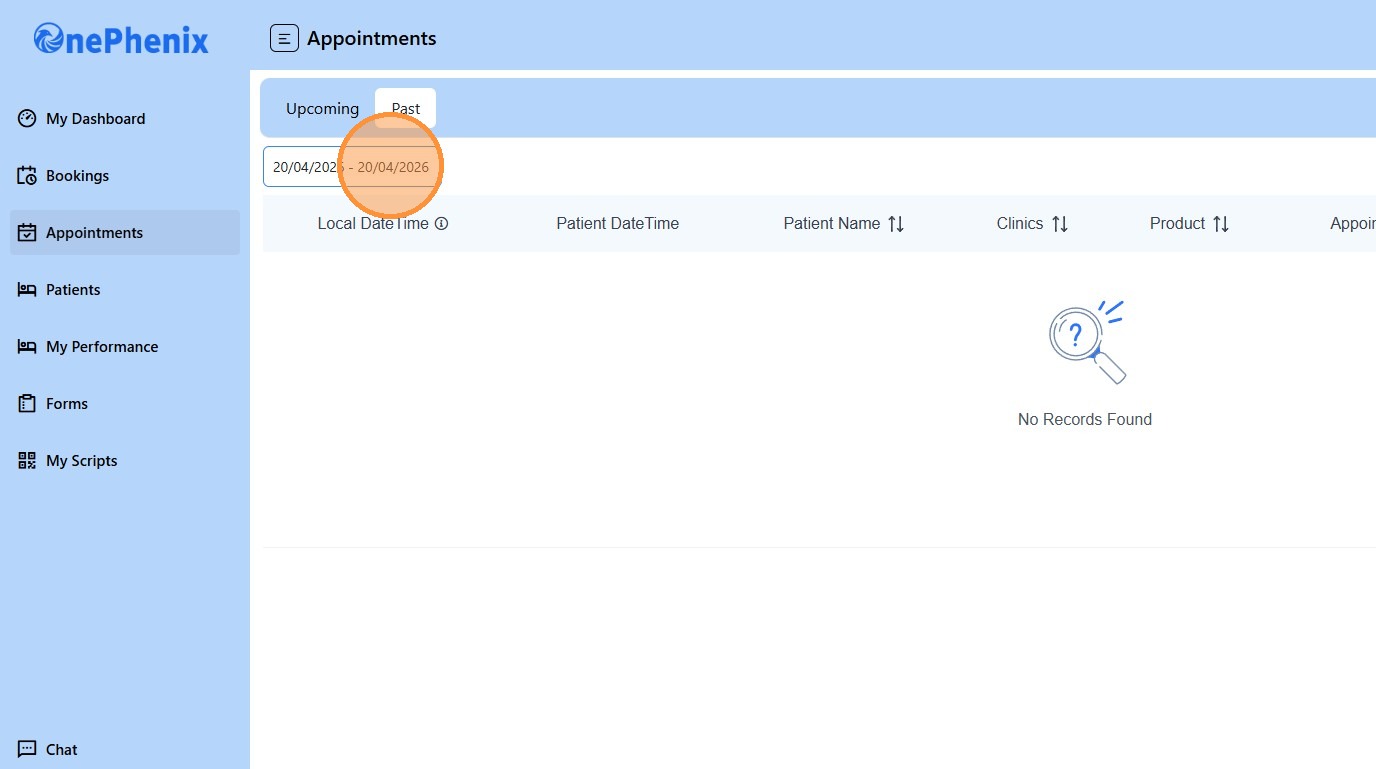
3. Click “Past”
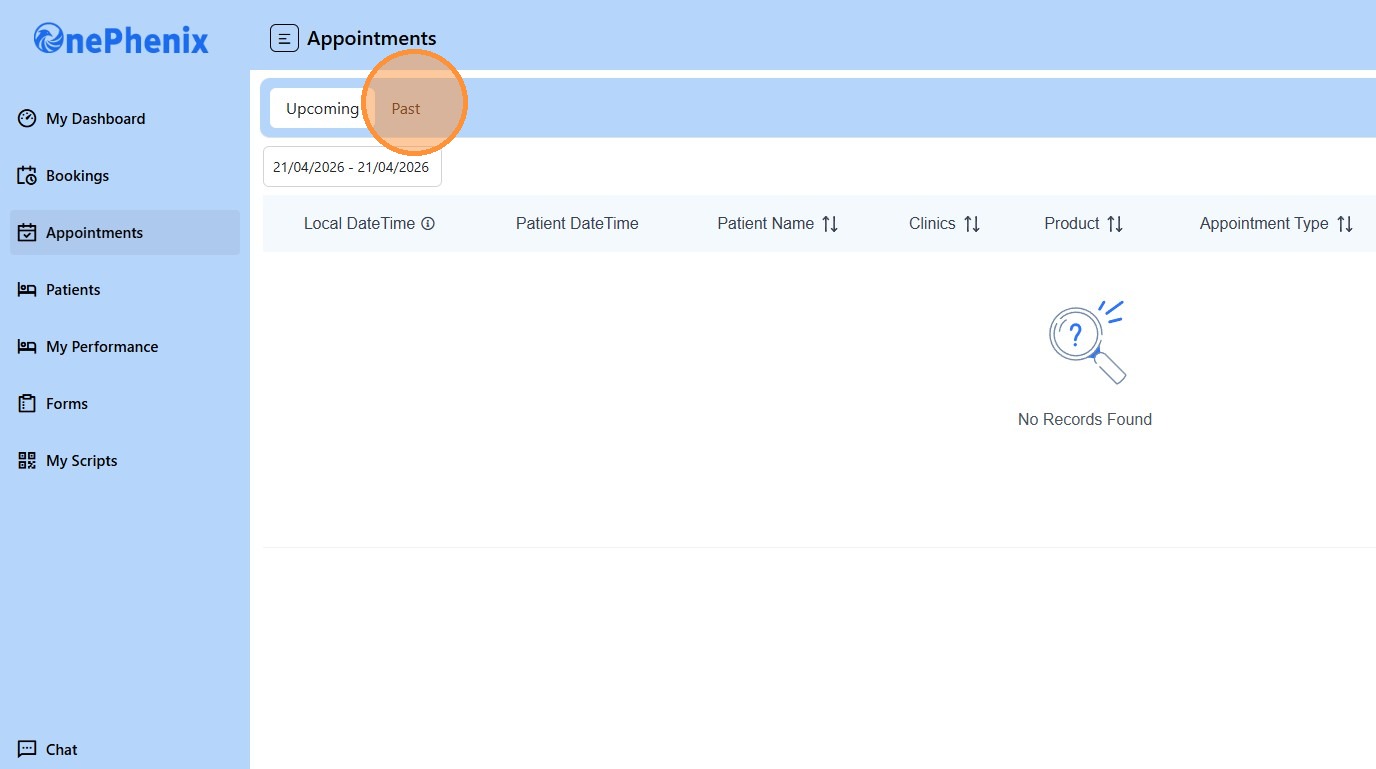
4. Adjust the date field
5. To gain access to a previous patient’s file the appointment status must be completed.
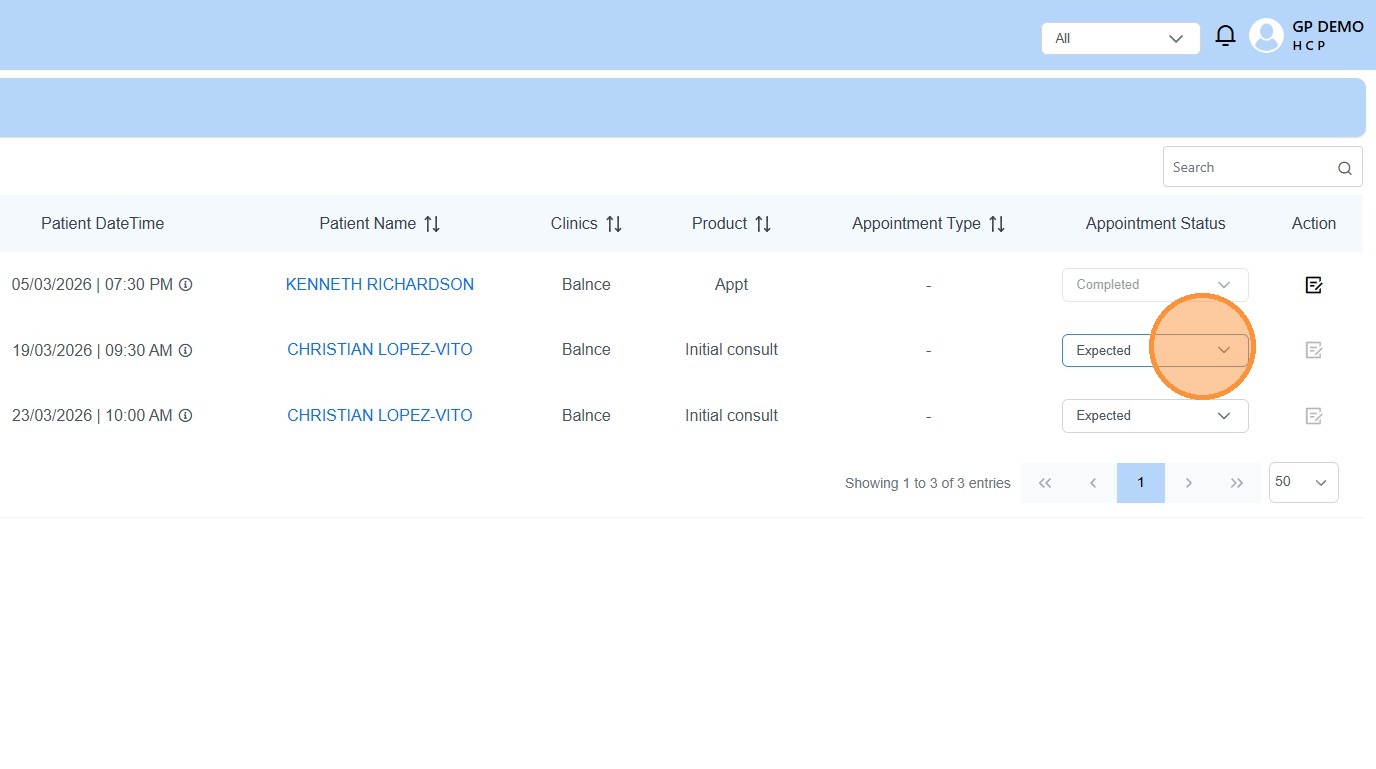
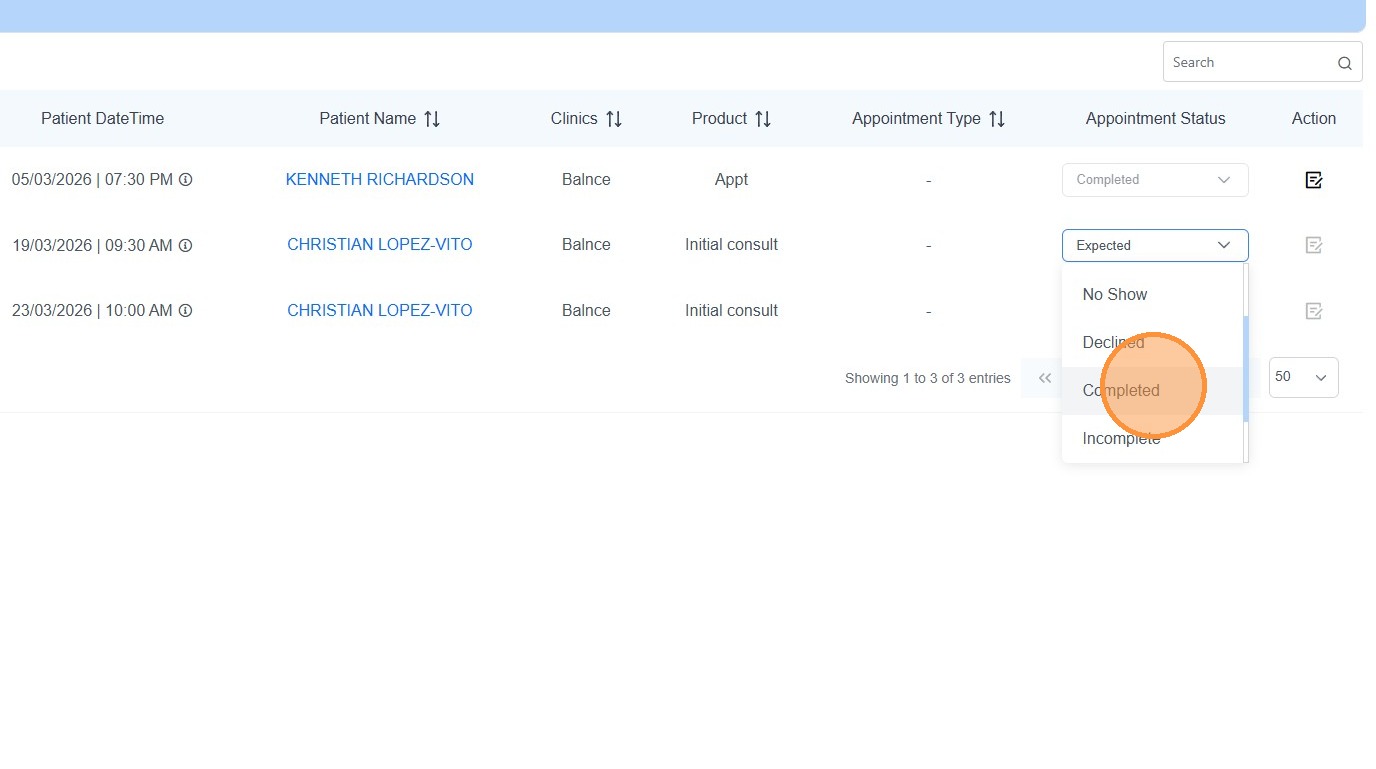
6. Click “Completed”
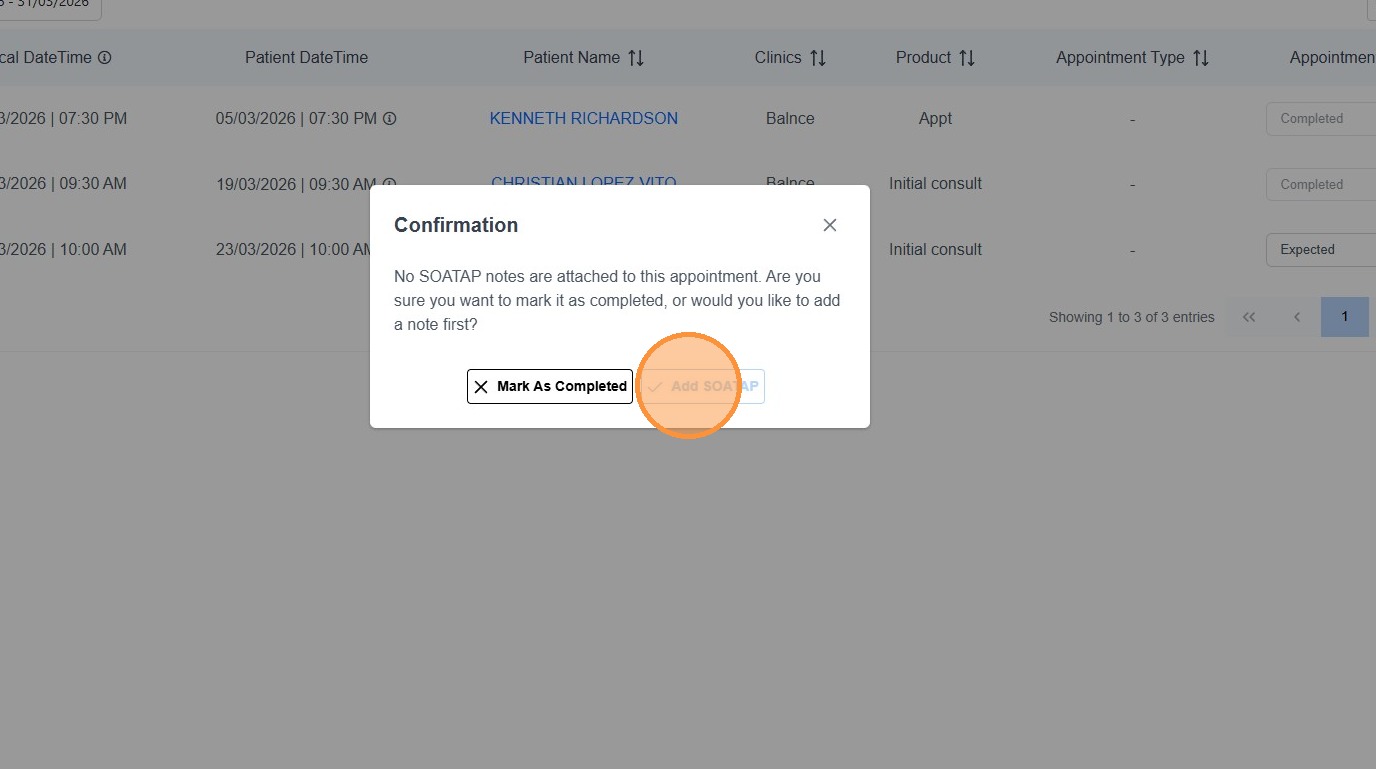
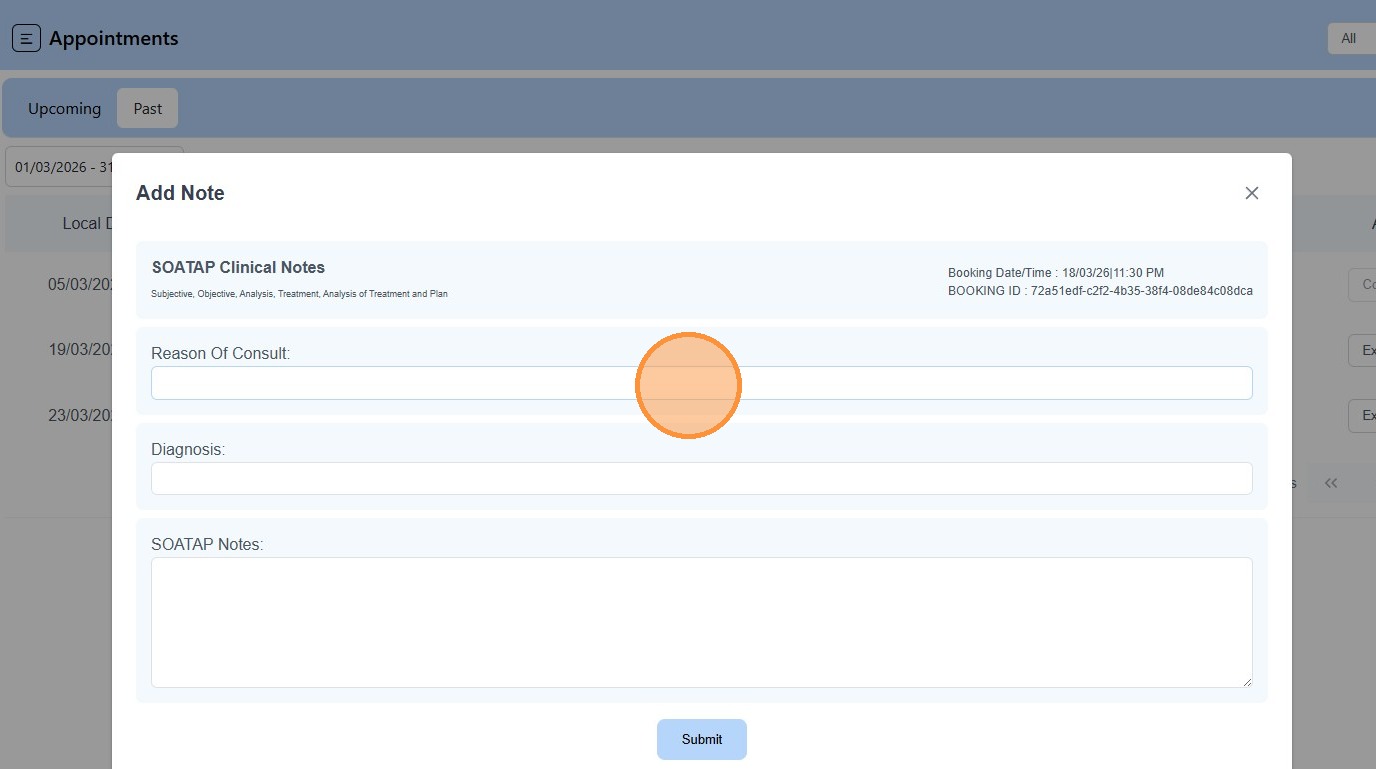
7. Click “Add SOATAP”
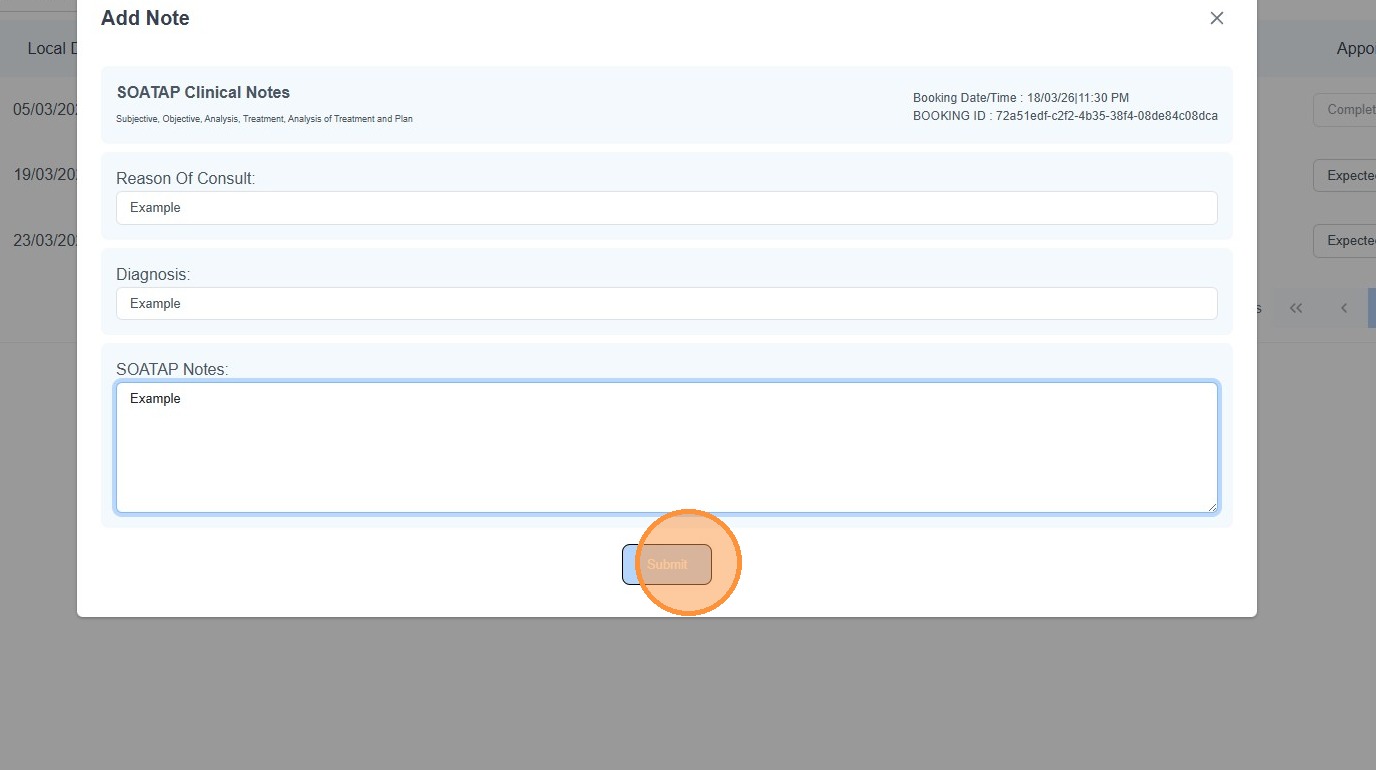
8. Complete SOATAP notes.
9. Click “Submit”
10. Now that the appointment is complete. The action button will be enabled. Click on this icon.