How to Add a Roster for a HCP for your Clinic
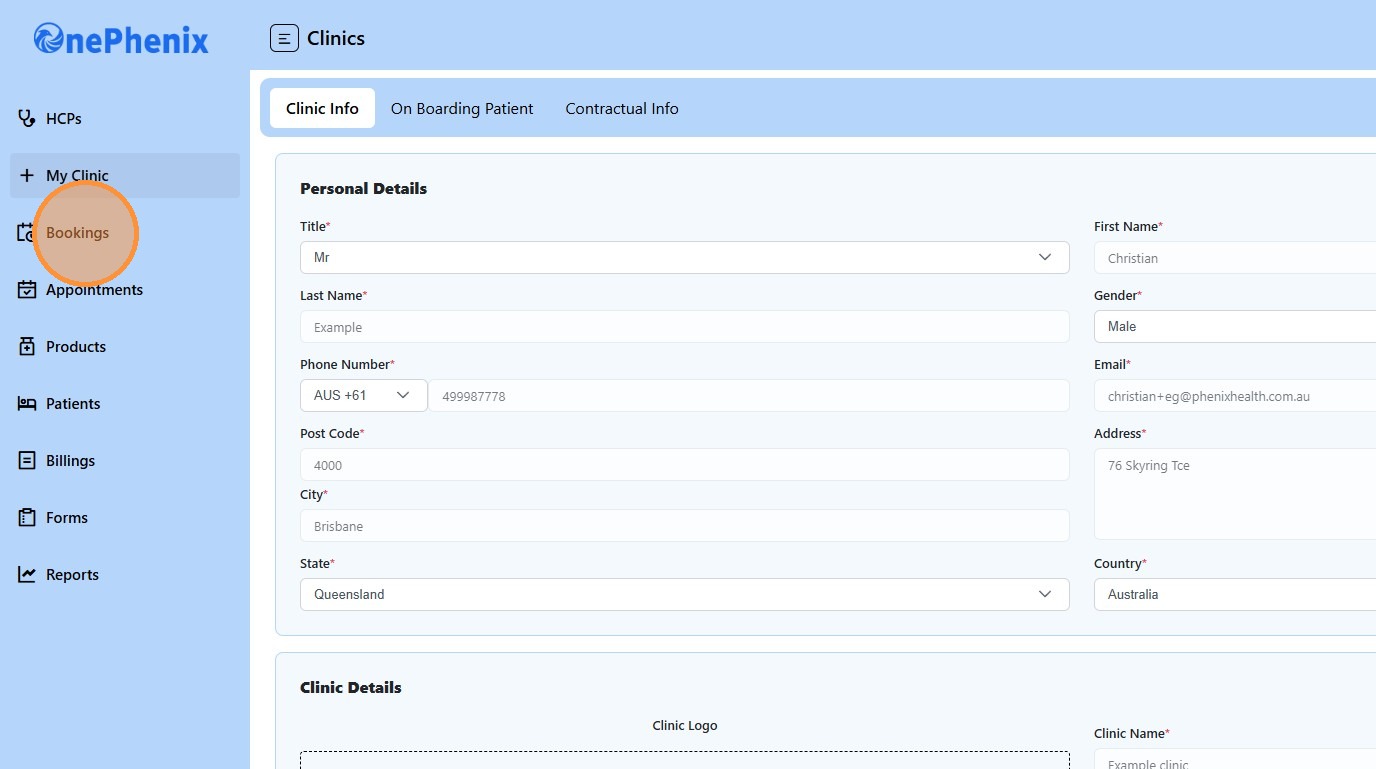
1. Click “Bookings”
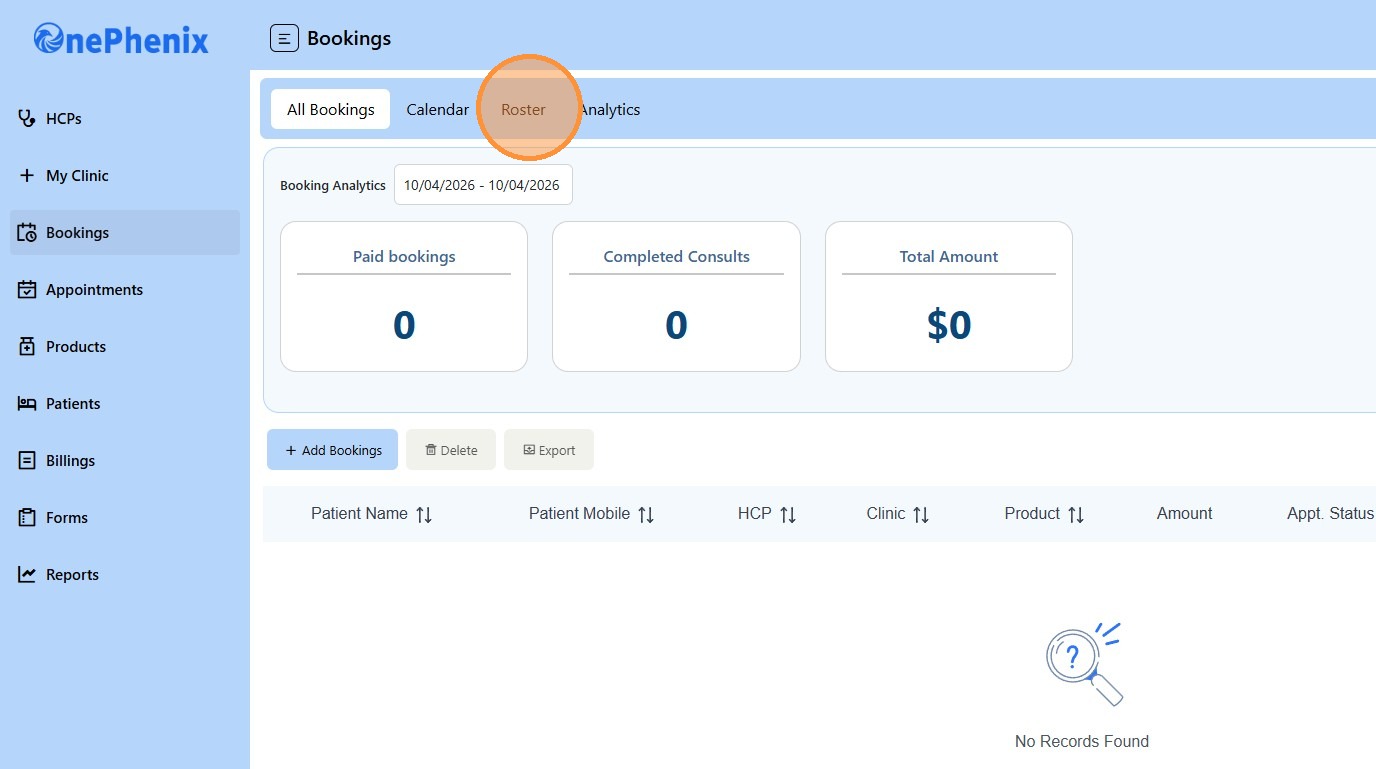
2. Click “Roster”
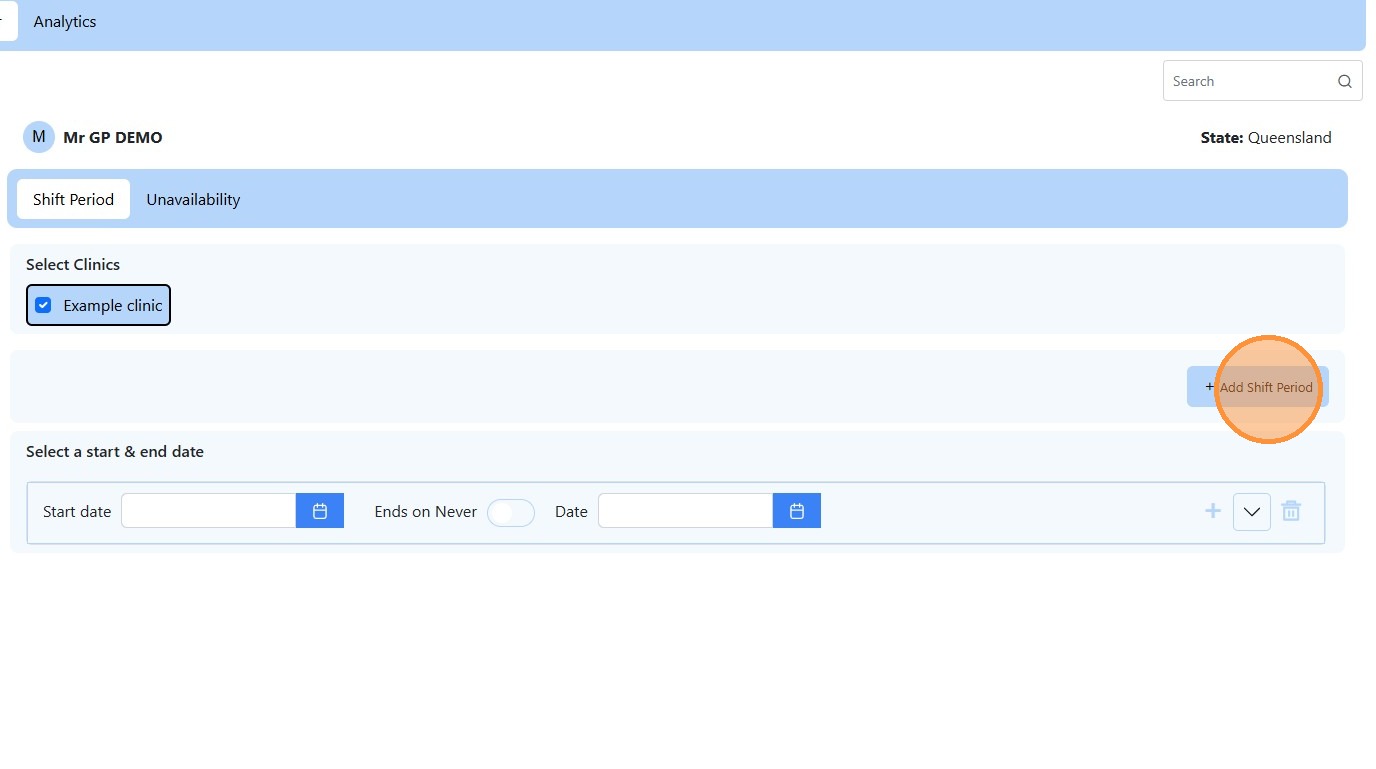
3. Click “Add Shift Period”
4. Select the “Start Date” of the Roster
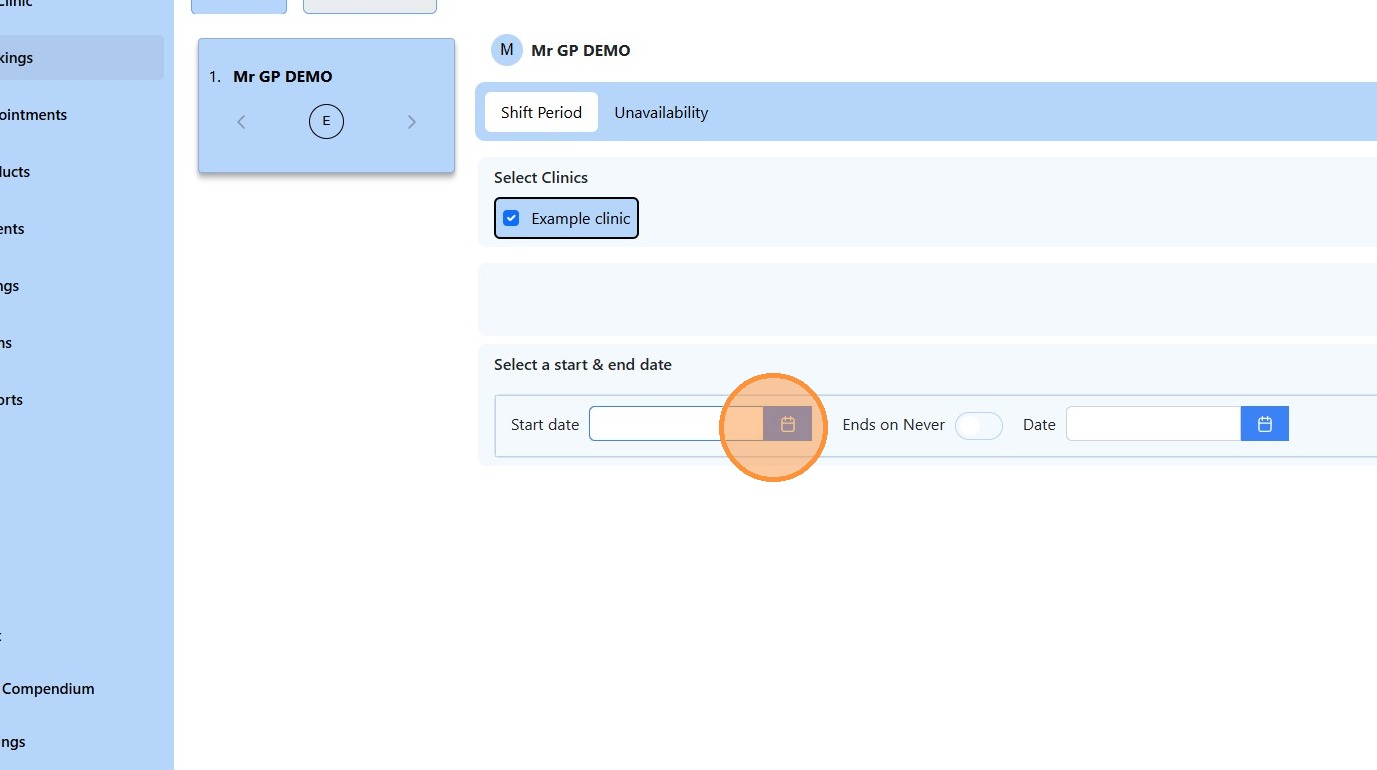
5. Select the “End Date” of the Roster
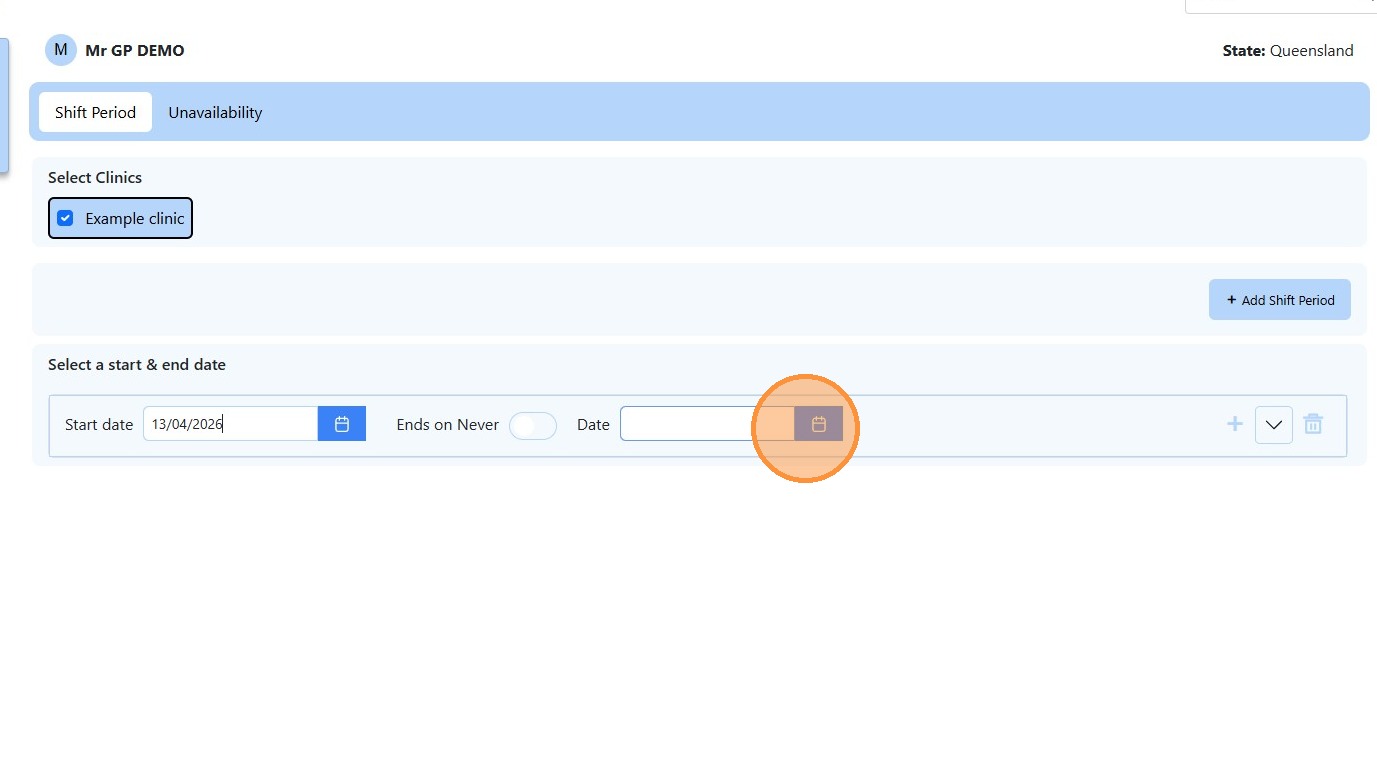
6. Click the “+” icon to add specific time
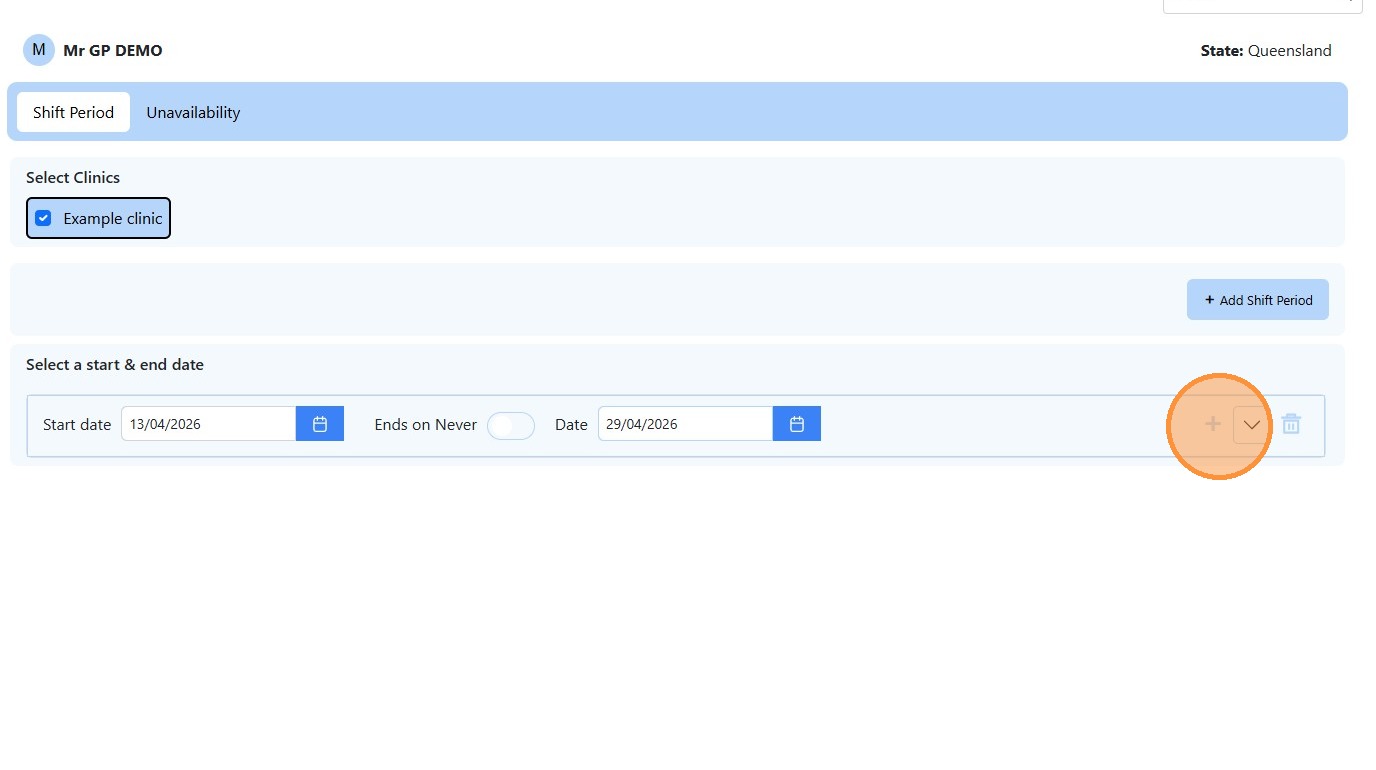
7. Enter the “Start Time”
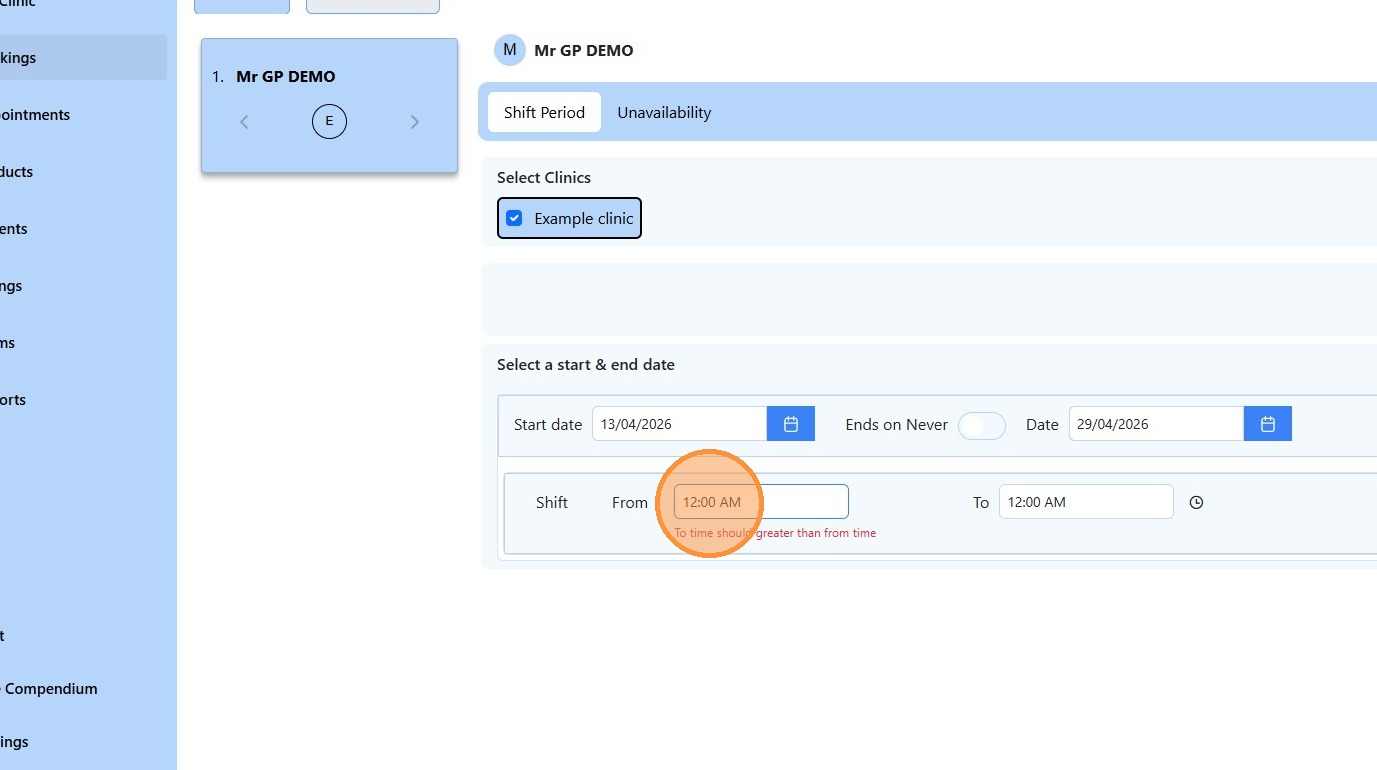
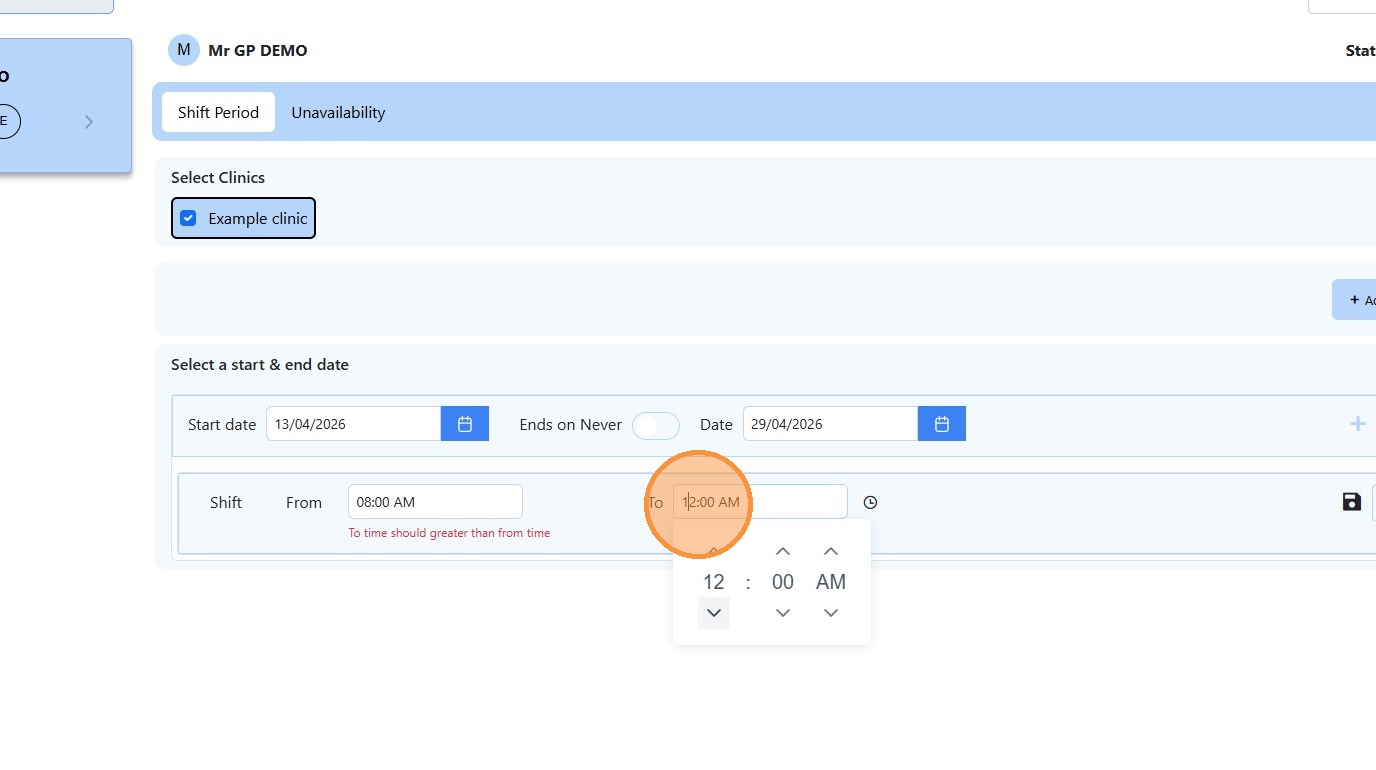
8. Enter the “End Time”
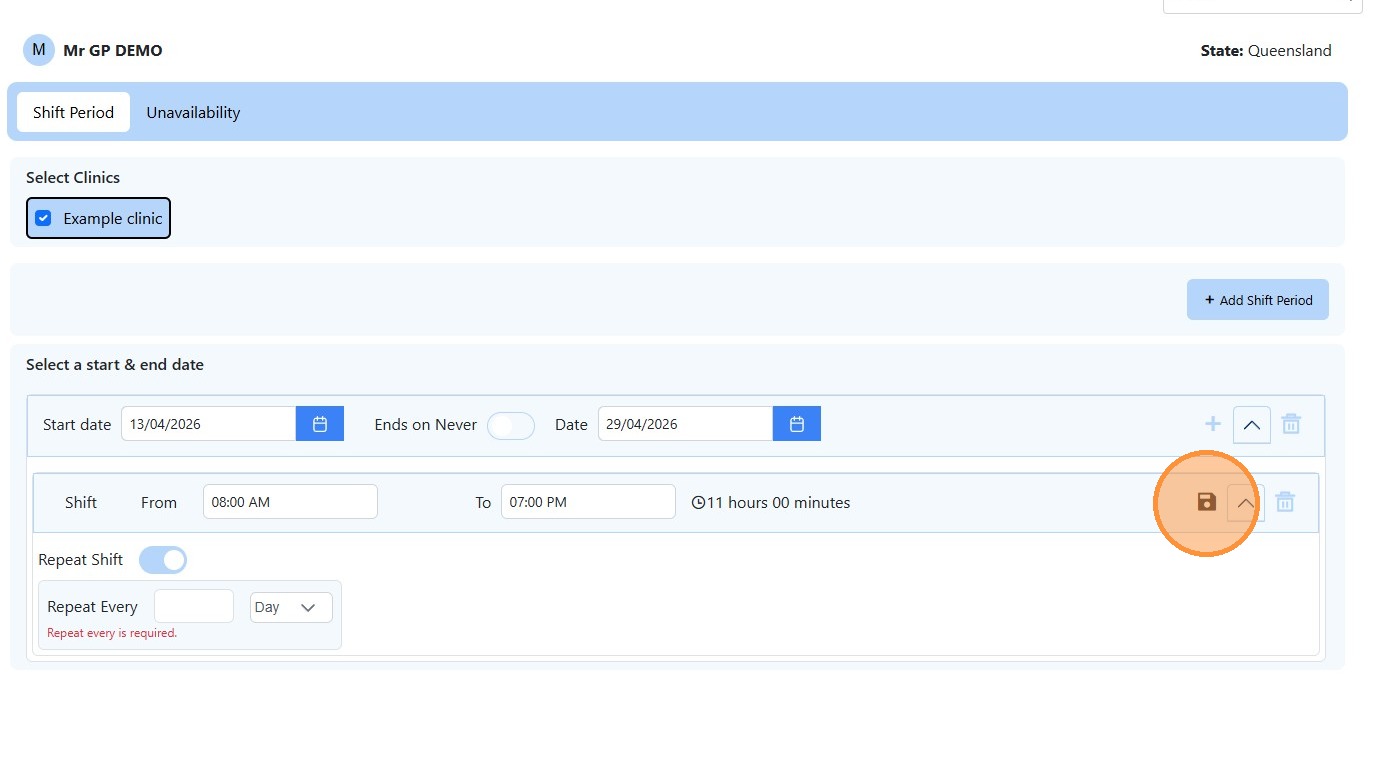
9. Click the “Save” Icon
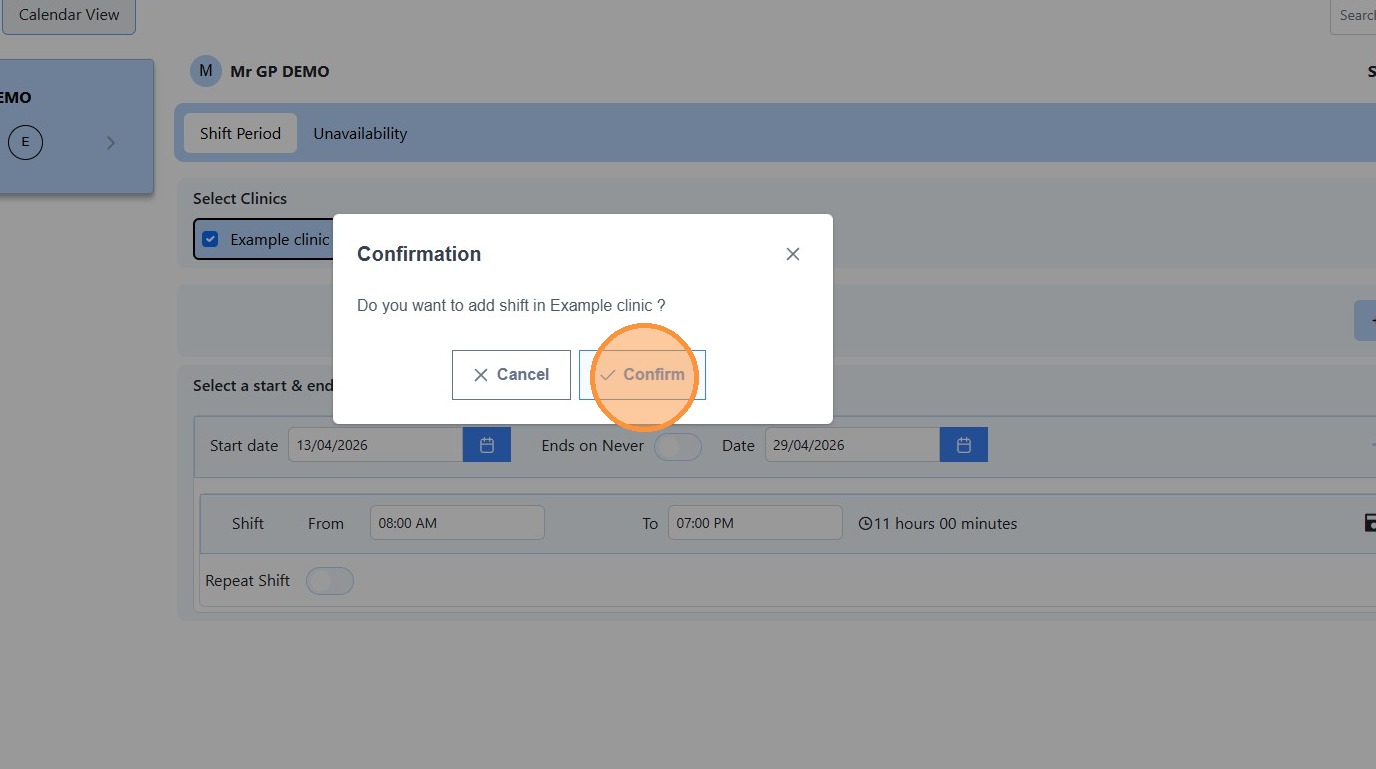
10. Click “Confirm” to save the Roster